• Getting started with Desired State Configuration – Part 1

    I have been thinking a long time about forcing myself to learn Desired Stat Configuration (DSC), but I haven’t gotten around to it… Now is the time

    Desired State Configuration is this super cool technology that appeared in Windows Server 2012 R2 and when Microsoft st6arted talking about it the typical example was the you hade this farm of Web Servers and you wanted to ensure that they were identically configured. The problem is that most of my customers do not have a farm of web servers… so what do I use it for. Well, Microsoft is releasing these new DSC resources on a regular basis for a lot of products which means that it is getting more and more interresting. The latest resource kit is called Wave 9 and it contains the following resources:

    cFileShare
    xActiveDirectory
    xAdcsDeployment
    xAzure
    xAzurePack
    xBitlocker
    xChrome
    xComputerManagement
    xCredSSP
    xDatabase
    xDhcpServer
    xDismFeature
    xDnsServer
    xDscDiagnostics
    xDSCResourceDesigner
    xExchange
    xFailOverCluster
    xFirefox
    xHyper-V
    xInternetExplorerHomePage
    xJea
    xMySql
    xNetworking
    xPendingReboot
    xPhp
    xPowerShellExecutionPolicy
    xPSDesiredStateConfiguration
    xRemoteDesktopAdmin
    xRemoteDesktopSessionHost
    xSafeHarbor
    xSCDPM
    xSCOM
    xSCSMA
    xSCSPF
    xSCSR
    xSCVMM
    xSmbShare
    xSqlPs
    xSQLServer
    xSystemSecurity
    xTimeZone
    xWebAdministration
    xWindowsRestore
    xWindowsUpdate
    xWinEventLog
    xWordPress

    As you can see thare are A LOT of them… some that I think are really cool are for instance TimeZone, RemoteDesktopAdmin, BitLocker and more. Note that all DCS recources starting with an X are eXperimental. So lets get started…

    Prerequsites

    DSC is built in to Windows Server 2012 R2 but it needs a patch KB2883200. If this patch is not installed you will net be able to see the modules you have installed.

    Installing DSC Resources

    There are some default resources installed by default:

    File
    Archive
    Environment
    Group
    Log
    Package
    Registry
    Script
    Service
    User
    WaitForAll
    WaitForAny
    WaitForSome
    WindowsFeature
    WindowsOptionalFeature
    WindowsProcess

    If you want to install other modules (for instance Wave 9) you just download them and extract them to the folder C:\Program Files\WindowsPowerShell\Modules

    Verifying the install

    To verify the install run the following command

    Get-DSCReource

    In the next part we will look at how you actually use DSC to create server configurations

    /Johan

    Links

    http://blogs.msdn.com/b/powershell/archive/2014/12/17/another-holiday-present-from-the-powershell-team-dsc-reskit-wave-9.aspx
    http://support.microsoft.com/kb/2883200

  • Active Directory Based Activation

    In Windows 2012 there is a new method of activating Windows Servers/Clients and Office. The method is called Active Directory Based Activation and is an alternative to KMS and MAK activation. It works by adding a Activation Object to Active Directory which activates computers joined to the domain.

    1. First we need to install the Volume Activation Tools from Server Manager (Volume Activation Tools is just the tool to create the activation objects in AD. Active Directory Activation does not require any server components)
    2. Second we need to add the KMS key. And activate it

      SNAGHTMLe915e53

    3. To install an office key you will need to download and install Microsoft Office 2013 Volume License Pack
    4. When the install is done the Volume Activation tool will pop up and allow you to add the key

    Note 1: The Windows Server 2012 R2 key will also activate clients

    Note 2: Active Directory based activation works for Windows 8/8.1, Windows Server 2012 / 2012 R2 and Office 2013. For older versions you will need a KMS server.

    Note 3: Since the activation object is stored in AD it is replicated to all DCs which means that all DCs can act as an activation server

    Links

    http://support.microsoft.com/kb/2781538
    http://blogs.technet.com/b/askpfeplat/archive/2013/02/04/active-directory-based-activation-vs-key-management-services.aspx
    http://blogs.technet.com/b/odsupport/archive/2012/11/07/how-to-setup-active-directory-based-activation-host-for-microsoft-office-2013.aspx

  • Password Reset in RDWeb

    Today I will take a short look at enabling password reset using the rdweb component in Windows Server 2012.

    This functionality is built in to Remote Desktop but it it not enabled by default. In this article we will look at enabling it and also creating a link to it on the login page

    We start of by enabling the Password Reset feature.

    1. Start IIS Manager on your RDWeb Server
    2. Browse to [Server Name] – Sites – Default Web Site – RDWeb – Pages
    3. Open Application Settings
    4. Change the property PasswordChangeEnabled to true
    5. To test the password reset functionality browse to
      https://[Servername]/RDWeb/Pages/en-US/password.aspx
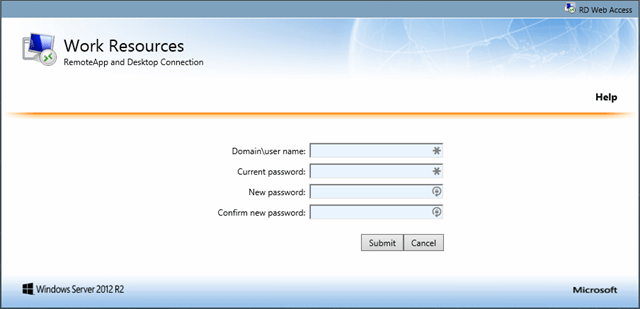
      and you will se this

      image 

    When  a user tries to log in using an expired password they will get this:

    Now, to enable the link on the login page…

    1. Using an elevated notepad (or tool of your choice) edit the file

      C:\Windows\Web\RDWeb\Pages\en-US\login.aspx

    2. Go down to line 583 and add the following line

      <a href=https://[ServerName]/RDWeb/Pages/en-US/password.aspx>Password Reset Utility</a>

    3. Save the page
    4. Browsing to the login page for RDweb and verify the change

    /Johan

    Links

    http://ryanmangansitblog.com/2013/03/11/add-password-reset-feature-to-remote-desktop-web-access-2012/
    http://blogs.msdn.com/b/rds/archive/2014/06/04/failed-logons-due-to-expired-passwords-password-change-functionality-in-rd-web-access.aspx

  • ADFS 3.0 with Windows XP (??) Clients

    Today I spent the day at a customers looking at a XP computer (I know they are supposed to be extinct) having problems authenticating using ADFS. As we know XP is using IE8 and IE8 in combination with XP does not support Server Name Indication. Turns out SNI is on by default in ADFS 3.0… bummer

    Fortunately it is fixable:

    Start by getting information about the SST Certificate using:

    netsh http show sslcert

    The we bind the IP:port combination to the SSL cert using (in an elevated command prompt):

    netsh http add sslcert ipport=[ipaddress : port from above] certhash=[Certificate Hash from above] appid=[appid from above] certstorename=MY

    These steps needs to be taken on both the ADFS server and the Web Application Proxy

    IMPORTANT: This works as long as the Web Application proxy is not doing anything else but working as a “ADFS Proxy”

    Link:
    http://hindenes.com/trondsworking/2014/03/25/adfs-3-0-windows-xp-fail/