• Sharepoint Detective work

    Today I was looking at a malfunctioning Sharepoint (for enterprise Portar) the problem was that it could not find the database for either configuration or content which meant that it was pretty much screwed. I am not the one who installed this so I did not know there to start looking. Since I am not very proficient in Sharepoint I decided to start from the beginning… Where should the database be located? I tried launching Sharepoint Central Administration… did not work. Tried launching the Sharepoint Powershell Admin console… Could not find farm… I looked in the eventlog… no mention of any SQL Server name…

    So I searched around abit online and found the most basic setting… where does Sharepoint expect to find:

    SharePoint 2007:
    SharePoint Server config database connection string location for SharePoint Server 2007
    My Computer\HKEY_LOCAL_MACHINE\SOFTWARE\Microsoft\Shared Tools\Web Server Extensions\12.O\Secure\ConfigDb

    SharePoint 2010:
    SharePoint Server config database connection string location for SharePoint Server 2010
    My Computer\HKEY_LOCAL_MACHINE\SOFTWARE\Microsoft\Shared Tools\Web Server Extensions\14.O\Secure\ConfigDb

    SharePoint 2013:
    And for SharePoint 2013…
    My Computer\HKEY_LOCAL_MACHINE\SOFTWARE\Microsoft\Shared Tools\Web Server Extensions\15.O\Secure\ConfigDb

    So this meant that I found the SQL server and could continue troubleshooting…

    Links:

    https://absolute-sharepoint.com/2013/06/sharepoint-server-config-database-connection-string.html

  • The DefaultValue expression for the report parameter ‘AX_CompanyName’ contains an error: Request for the permission of type ‘System.Security.Permissions.EnvironmentPermission

    This is a follow up to the last post regarding Reports in AX.

    When I tried the report I published I got an other error:  The DefaultValue expression for the report parameter ‘AX_CompanyName’ contains an error: Request for the permission of type ‘System.Security.Permissions.EnvironmentPermission

    image

    When I tried the report again it worked… Weird!

    Apparently it has to do with the configuration of SSRS. If you open the SSRS configuration file called rssrvpolicy.config in

    C:\Program Files\Microsoft SQL Server\MSRS12.MSSQLSERVER\Reporting Services\ReportServer

    Find the line PermissionSetName=’Execution’ and change it to PermissionSetName=”FullTrust” (remember to make a backup of the file before you change it)

    /Johan

    Links
    https://community.dynamics.com/ax/b/axsupport/archive/2012/02/02/microsoft-dynamics-ax-2012-reporting-extensions-error-system-security-permissions-environmentpermission-while-running-report

  • rsItemNotFount in AX 2012

    So this one involves Reporting Services and AX. One of my customers had an issue printing a report today and the error he got was that the report did not exist.

    image

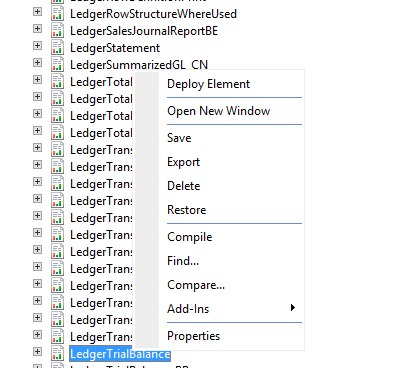
    I checked the SSRS web UI and sure enough I could see it… The problem was that it was not correctly published from AX. To fix this I went into the UAT (Ctrl?D), found the report, right-clicked it and clicked Deploy Element.

    image

    I tried it and everything looked fine and dandy… or so I thought Sad smile

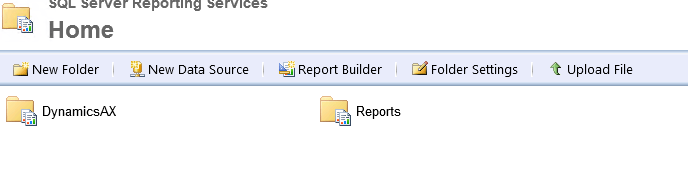
    When I went into the SSRS Web I found that the reports I just published ended up in a new subfolder and not in the standard DynamicsAX folder

    image

    Turned out there was an error in the AX Reporting Server Setup
    image should be image

    So I changed it and everything worked fine. Remember to delete the extra folder that was created by mistake in SSRS Web.

    So the problem was actually in my case not an issue with a published report… it was an error with the path containing reports…

    That’s all for today

    /Johan

    Links:
    http://axbloggerblog.blogspot.se/2012/01/deploy-dynamics-ax-2012-default-ssrs.html

  • rsAccessDenied error when running reports in AX

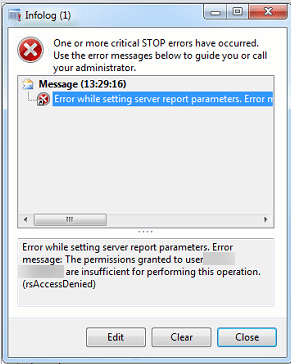
    Today we look at a tiny issue… Permissions in problems. I got an email from a user containing the following error message:

    SNAGHTMLab2cee3

    This is quite a simple problem… with (in this case) a little twist. The customer is not using the default SRSS instance which meant that when I first tried to fix the problem I did it in the wrong instance Generad.

    To fix this, you first go to the AX client – System administration – Business Intelligence – Report Servers. Copy the information from the field called Report Manager URL, this should normally look like http://ReportServer/Reports but in my case it was http://ReportServer/Reports_AX_PROD_SSRS.

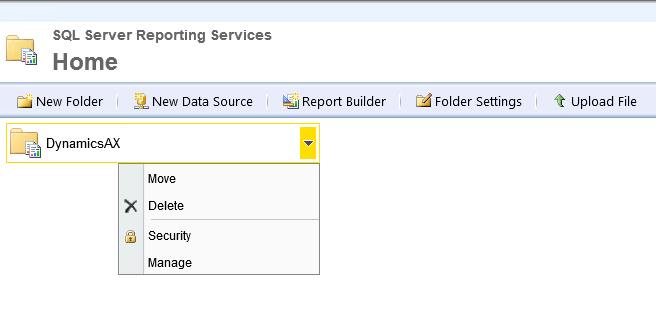
    Start your browser and go to the URL you copied before. You should see something like this

    image

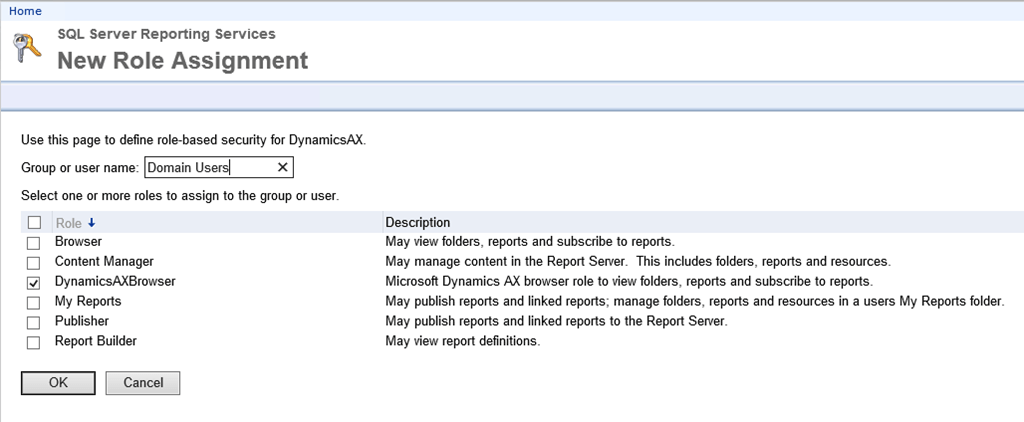
    Click the down arrow and select Security. Click New Role Assignment

    image

    Enter Domain users and check DynamicsAXBrowser… Since AX is normally handling the security of which data is displayed in the report it is not a problem to add Domain Users… I the user is not an AX user no data will be displayed

    That’s all folks

    //Johan

  • Installing Security Development Tool for AX 2012 R3

    Today I am installing Security Development Tool in one of our lab environments. First of all you need to download the tool from LifeCycle Services.

    When you have the file msi file it is time to do the install

    1. Start by running the msi file… this is an extremely short install which seems to do nothing… but that is OK
    2. When the mis install is done start Microsoft Dynamics AX 2012 Management Shell as an elevated user and run the followingInstall-AXModel -File “c:\Program Files (x86)\Microsoft\Security Development Tool\SecurityDevelopmentTool.axmodel” -Server [servername] -Database [databasename]
    3. Start the AX client and you will get a message that the Model store has been modified. Select Compile and Syncronize and wait for the process to complete
    4. When AX is done compiling and syncing start the AOT (by pressing Crtl + D)
    5. Browse to the Class called SysSecEntryPointmanagerSetup, right-click and select Open
    6. Restart the AX client
    7. When the client is restarted go to Administration and click Security entry point permissionsNote: You might get an error that the tool can only be run in Single-User session mode. In that case goto Administration – Online users and disconnect all users except your own

    That is all

    Links:
    https://technet.microsoft.com/en-us/library/hh859727.aspx

  • Installing Management Reporter and connecting it to AX 2012 R2

    If you use Dynamics AX 2012 R3, Management Reporter is included from the beginning. It is simply a feature you add from the install application. Prior to AX 2012 R2 you will need to download the install from Microsoft and install it. This is a short description on how to install Management Reporter and integrate it into AX 2012 R2.

    My server Environment consists of one SQL server called SQL1, one AOS server called AOS1, one Management Reporter Server called MR1

    I start by installing SQL locally on the MR1. The features installed are:

    image

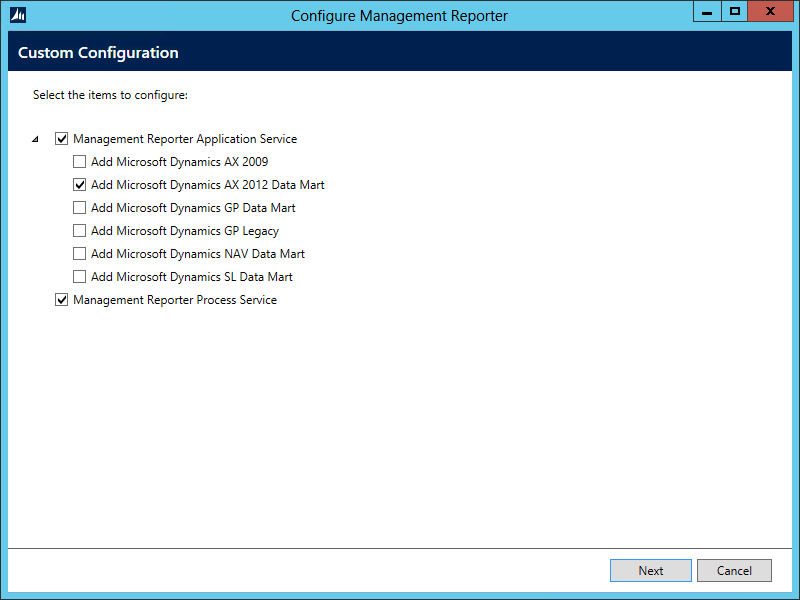
    Then next thing is to install Management Reporter. This is a simple Next, Next, Finish install and when it is done you start the Configuration Console to do the actual work. The first thing to do is to select the AX 2012 Data Mart integration.

    image

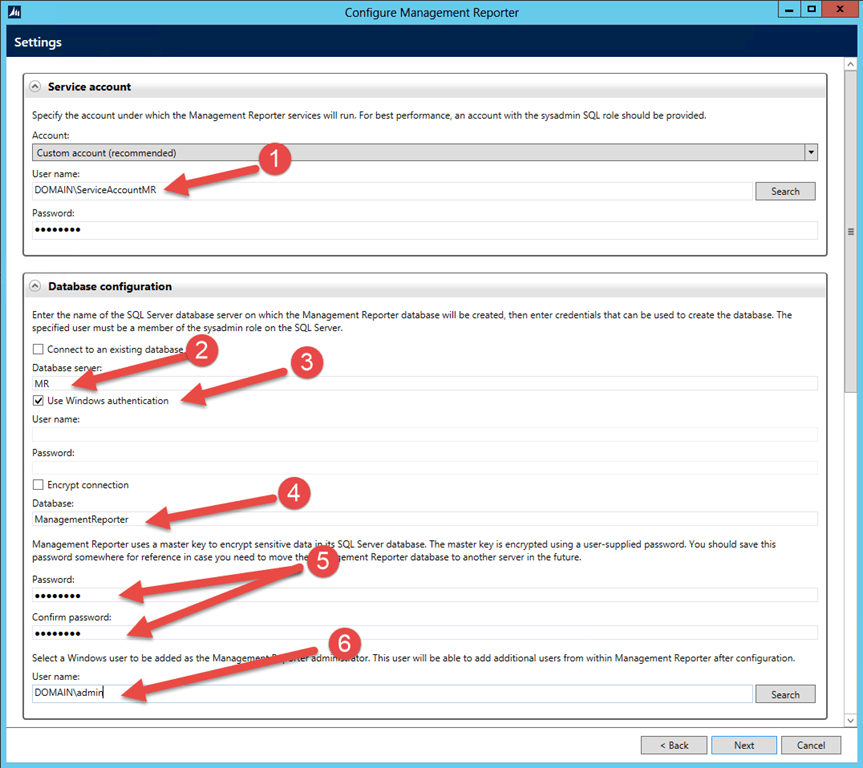
    Now start the hard stuff… I will try to explaing the values as good as possible and also where it is easy to go wrong

    image     image

    1. This is a Service account used to run Management Reporter. It needs to be a user in the AOS instance you want to connect to and it needs the role System Administrator
    2. This is the database server where Management Reporter keeps its own databases. In this case it is locally on the MR server.
    3. To create the databases on the MR server we use Windows authentication which is the account you are currently logged in as
    4. The name of the Management Reporter database
    5. This is an encryption key Management Reporter uses to encrypt information stored in its database
    6. This user is added to the Management Reporter as an admin
    7. This is the port which Management Reporter Client will use to connect to the Management Reporter Server
    8. This is the port used to connect to the AOS server instance. Note that if you have more than one instance on the same server this will be different for all instances. You can find port information for each instance in Microsoft Dynamics Ax Server Configuration Utility (Image below). In my case this is the third instance and the ports are 8203 and 2714.
    9. This is the AOS server (Note: NOT the instance name)
    10. See 8
    11. This is the database server where the AX database is located.
    12. This is the AX database name. Note that the service account will need atleast db_reader access to both the AX database and to the AX model database
    13. This is the database where the AX Data mart is stored. In my case this is located in the MR Server 

    image

  • Installing Dynamics AX 2012–Good to know

    Today I am doing some testing and installing Dynamics AX 2012 R3… Here are some notes on the install (more will be added)

    On my first test the install failed hard. It seemed that the install of OAS worked and that the rest failed… in fact everything failed. In the log I found the following error:

    The service cannot be started, either because it is disabled or because it has no enabled devices associated with it. (Exception from HRESULT: 0x80070422).

    The error occurred because my lab machines has the Windows Update Service disabled… The solution is to set the service to either manual or automatic

  • Bryta sig in i en SQL Server

    Härom dagen bytte jag domän på en SQL server och missade att byta lösenord på SA innan jag gjorde det. Detta betydde att jag jag inte kunde logga in. Här kommer lite information om hur jag gjorde för att ta mig in.

    För att göra en Password Recovery på SQL Servern gjorde jag följande

    1. Starta SQL Configuration Manager
    2. Stoppa tjänsten SQL Server
    3. Öppna Properties för SQL Server tjänsten
    4. Gå till fliken Advanced
    5. Ändra Startup Parameters till –m;-dC:\Program Files\Microsoft SQL…
    6. Starta SQL tjänsten igen
    7. Starta en Kommando Prompt
    8. Kör SQLCMD
    9. Kör följande SQL kommandon för att skapa ett nytt SA konto och ge det rättigheterna sysadmin:
         1: CREATE LOGIN recovery WITH PASSWORD = ‘TopSecret 1′ (Remember SQL server has default strong password policy

         2: go

         3: sp_addsrvrolemember ‘recovery’, ‘sysadmin’

         4: go

    10. Gå tillbaka till SQL Configuration Manager stäng SQL tjänsten
    11. Öppna Properties för SQL Server tjänsten
    12. Gå till fliken Advanced
    13. Ändra Startup Parameters tillbaka till -dC:\Program Files\Microsoft SQL…
    14. Starta SQL tjänsten igen
    15. Starta upp SQL Server Management Studio och ändra lösenordet på sa kontot

    Jag i det här läget att server var i Windows Authentication mode så jag var tvungen att ställa om den till mixed mode.

    1. Starta Regedit
    2. Ändra HKLM\Software\Microsoft\Microsoft SQL Server\MSSQL.1\MSSQLServer\LoginMode till 2 för mixed mode


    Länkar

    http://v-consult.be/2011/05/26/recover-sa-password-microsoft-sql-server-2008-r2/

    http://www.sqlservercentral.com/Forums/Topic421197-149-1.aspx#bm505642

  • The Nerd Herd – Microsoft System Center Advisor

    Det andra avsnittet denna säsong handlar om Microsoft System Center Advisor.
    System Center Advisor är ett molnbaserat övervakningssystem likt Intune men för servrar. Produkten är fortfarande i Release Candidate status och vi har inget release datum.
    De tjänster som kan övervakas i RCn är (vi förväntar oss mer):
    – Windows Server- Windows Server Active Directory- Windows Server Hyper-V- SQL Server
    Notering: I avsnittet benämner vi produkten som Microsoft Codename Atlanta… detta var namnet när vi spelade in men har alltså ändrats til System Center Advisor.
    Microsoft System Center Advisor Official Homepage
    Source: The Nerd Herd

    Det andra avsnittet denna säsong handlar om Microsoft System Center Advisor. System Center Advisor är ett molnbaserat övervakningssystem likt Intune men för servrar. Produkten är fortfarande i Release Candidate status…

  • Finding out version and edition of a Microsoft SQL Server

    The other day at a customers I needed to find out the version and edition of an installed SQL server… Here is the solution:

    Connect to an instance of SQL Server by using the following sqlcmd command:

    sqlcmd -S ServerInstance

    Where Server is the name of the computer and Instance is the name of the instance you want to check. If you have used the default named instance during setup, specify the instance as “SQLExpress”.

    To identify the server name and instance name, type the following command:

    select @@servername
    go

    When connected, type the following two commands:

    select @@version
    go

    Alternatively, you can type the following two commands:

    select serverproperty(‘edition’)
    go

    The sqlcmd tool displays the version information. If the last line of information includes “Express Edition,” the instance to which you are connecting is running SQL Server Express.

    Thanks Anders…

    Links

    http://msdn.microsoft.com/en-us/library/ms165662(SQL.90).aspx