• Error Doing a Full Data Sync

    Today I am setting up a proof of concept for the retail solution in AX 2012 R3. As a base I am using the Microsoft AX 2012 R3 demo VM deployed to Azure using LCS

    When Trying to do a  full data sync I got the following error:
    ”The target principal name is incorrect. Cannot generate SSPI context”

    SSPI context has to do with Service Principal Name in Active Directory. The Service Account for SQL (contoso\sqlsvc) needs to have SPN set like this:

    setspn –A MSSQLSvc/AX2012R2A:1433 contoso\sqlsvc
    setspn –A MSSQLSvc/AX2012R2A.contoso.com:1433 contoso\sqlsvc

    Where AX2012R2A and AX2012R2A.contoso.com are hostname and FQDN for the AX demo VM.

    In my case I had duplicate FQDN and no hostname. I cleaned out the duplicates and added the hostname.

    Links:
    https://dynamicsessentials.net/2015/04/12/the-target-principal-name-is-incorrect-crm-setup/#comments

  • PowerBI breaks Workflow Editor and Report Editor

    I am so sorry about the click bait title… I could not resist Smile

    Todays adventure consists of troubleshooting why Report Editor and Workflow Editor stopped working in our Dynamics 365 for Operations environment. First som history:

    This all started in one of our environments where we noticed that Report Designer for Management Reporter (Financial Reports) was not working… after some troubleshooting we called MS Support and did two days of troubleshooting I got the suggestion to try this in another environment (I am a little annoyed that I did not do this before) and of course it worked. Well, that did not really provida a lead to the root cause. One day later I got a request to configure PowerBI in the environment where it worked and later that day once again tested in the  “working” environment and low and behold… it did not work!!! What the_____? This got me thinking about what could have caused this… I installed PowerBI… could it be… Yes it could.

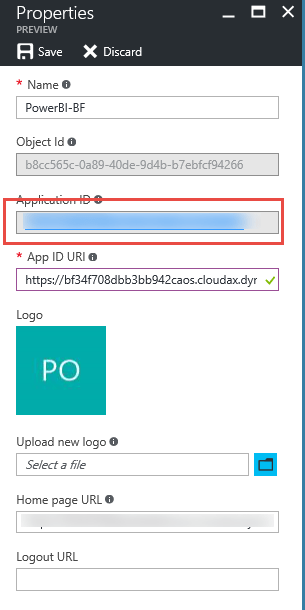
    I remembered that I had read in the description of the PowerBI configuration that there was a caveat in the configuration of the Azure AD Application: 

    App ID URI: This value is mandatory, but isn’t required for the workspace integration. Make sure that this App ID URI is a mock URI like https://contosoAX, since using the URL of your deployment can cause sign-in issues in other AAD applications such as the Excel Add-in.”

    So I went back to Azure AD and I had unfortunately not done this…

    Bildresultat för facepalm

    I changed this in both environments and… Voilá… it worked.

    Note: This has been changed in my original post on PowerBI Smile

    Links:
    http://blog.johanpersson.nu/?p=2351
    https://ax.help.dynamics.com/en/wiki/configuring-powerbi-integration/

  • Mobile Workspaces in Dynamics 365 for Operations

    Was looking today for a way to test mobile workspaces in Dynamics 365 for Operations (still no good abreviation). This is a bit hidden.

    To be able to create a mobile workspace you log into D365O. Once you have logged in you, goto the address bar in your browser and add &mode=mobile to the end of the address and press enter.

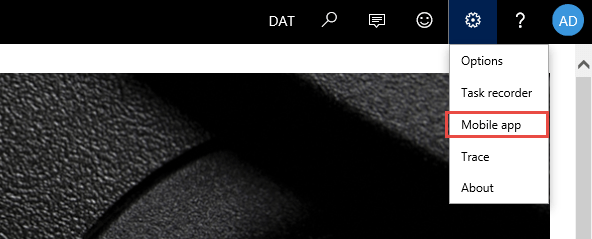
    Go to the module where you want to create the mobile workspace and click the settings wheel in the top right corner and a new menu item is visible

    image

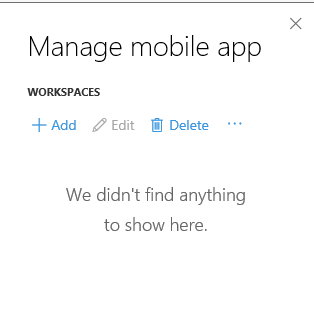
    Click mobile App menu item and then click + Add

    image

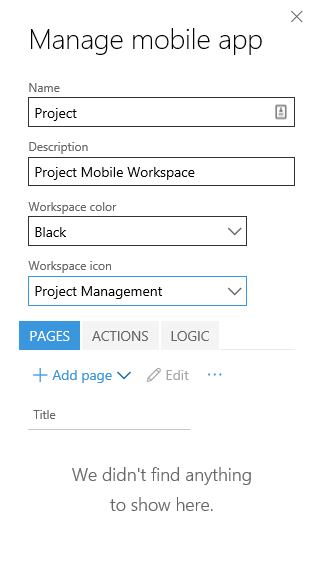
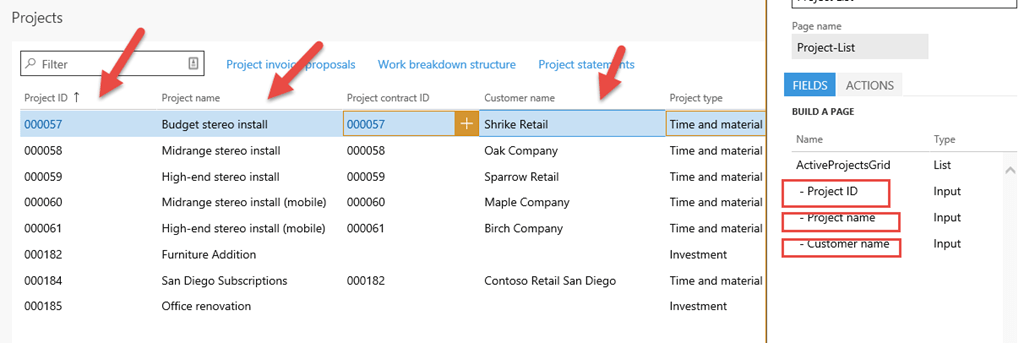
    In my example I am in the Project module. I click Add to create a mobile app

    image

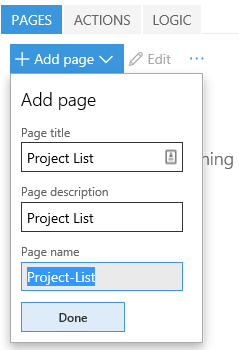
    I click + Add Page and give it a name and a description and click Done

    image

    Click + Select Fields to add which fields to view. You add fields by clicking on the plus on each column and click Done when you are ready.

    image

    Click Done and Publish workspace to finish the Mobile Workspace.

    To test your Mobile workspace, install the Microsoft Dynamics 365 app from Google Play Store eller från Apple App Store, add the URL to your Dynamics 365 for Operations tenant, log on with your Azure Active Directory account and test your workspace

    Screenshot_2017-01-17-21-37-00 (002)

    /Johan

    Links:
    https://ax.help.dynamics.com/en/wiki/mobile-development-handbook/
    https://sandeepchaudhury.wordpress.com/2016/09/30/sneak-peek-into-mobile-applications-framework-for-dynamics-axdynamics-365-enterprise-edition/

  • Error when syncing DataMart – Invalid column name ‘PARTITION’. Invalid column name ‘Key_’.

    Todays issue is a problem with integrating Management Reporter CU 15 with AX 2012 R3. When doing the initial integration we got this error:

    Invalid column name ‘PARTITION’.
    Invalid column name ‘Key_’.

    and the integration never finished. After doing some research online I found someone with this issue and the recommendation was to downgrade to Management Reporter CU13. When doing so we bumped into an error in CU 13 causing deadlocks in SQL. I called Microsoft support and got the recommendation to once again upgrade to CU15.

    Here is a good place to insert some history:

    The customer upgraded from AX 2012 Feature Pack directly to AX 2012 R3. Before upgrading from AX 2012 Feature Release to AX 2012 R3 we had installed MR CU13. In AX 2012 R2 Microsoft introduced a feature called PARTITION. This is used to be able to host AX in a multi tenant environment with isolated customers.

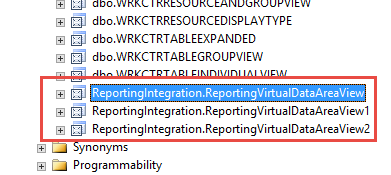
    When installing Management Reporter (CU13 and Later) and integrating it to AX it creates three views in the database.

    image

    When we upgraded directly from AX 2012 Feature Release directly to AX 2012 R3 these views where migrated to R3 and when we installed CU15 these views were never updated (the PARTITION column was missing), Management Reporter just verified that they were there and thought all was fine.

    1. Resolution:
      Remove the integration
    2. Remove the three views
    3. Recreate the integration
    4. Enable the integration and sync the datamart

    That is all for today

    /Johan

  • Configure PowerBI for Dynamics 365 for operations

    Today I helped two of my colleagues setting integrating Power BI for Dynamics 365 for operations. There are a couple of guides online which I have used to create this post, but I thought I would create one from my experience.

    There are a couple of main steps we need to go through:

    Create a Azure AD Application
    Configure Dynamics 365 for operations for Power BI
    Configure Power BI
    Configure your workspace

    Create a Azure AD Application

    There are two ways of doing this… you can do it using the Power BI Developer registration tool or you can do it directly from the Azure Portal. We did it from the Azure Portal like this:

    1. Log into the Azure potal… You can use both the old and the new one
    2. Goto Azure Aztive Directory and select your Azure Active Directory Instance
    3. Go to Applications/App Registrations
    4. Create a new application with these settings:
      1. Name: ChooseYourName
      2. Application Type: Web app/API
      3. Sign-on URL: https://theadressforyourdynamics365foroperationsinstance/oauth
      4. App ID URI: https://theadressforyourdynamics365foroperationsinstance  Anything EXEPT https://theadressforyourdynamics365foroperationsinstance . You can for instance use https://DynamicsBI, it only has to be unique for each Azure AD Application
        Edited 27/1 2017
      5. Reply URL: https://theadressforyourdynamics365foroperationsinstance/oauth
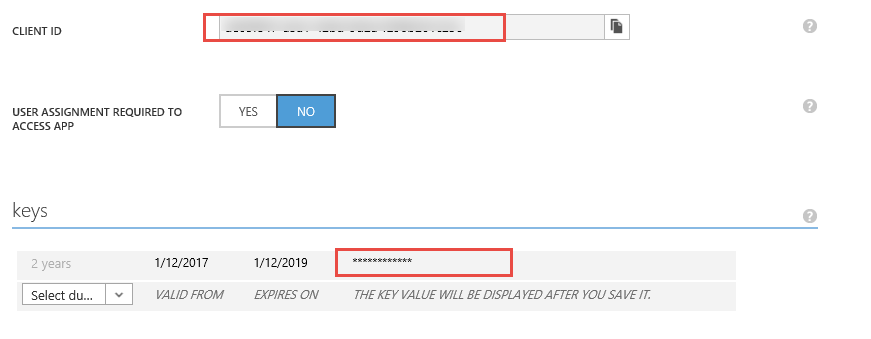
    5. When this is created you will get a Client ID/Application ID and you will create a key. You need to save these because you will need the later. Note that the keys are only visible when they are created, Once you leave the page and go back you cannot see them again. If this happens and you have not saved it you can simply create an new one.Old portal
      SNAGHTML221ce22New Portal:
      SNAGHTML22b2d3e
    6. Once you have set up the application in Azure ID you will need to give it some permissions. This is where we got stuck because in one of the guides there was a screenshot which showed to few permissions and it simply did not work. You add the application Power BI Services and give it the correct permissions. We used the following permissions:
      1. View all Groups
      2. View All Reports
      3. Create Content
      4. View content Properties
      5. Read and Write all datasets
      6. View All Datasets
      7. View All Dashboards
      8. Add Data to User’s Dataset

    Configure Dynamics 365 for operations for Power BI

    1. In Dynamics 365 for Operations, go to System Adminstration – Power BI
    2. You need to Enable the configuration and then you change these values
      1. Azure AD Tennant (this you will find in the Azure Portal)
      2. Client ID (you saved it above)
      3. Application key(you saved it above)
      4. Redirect URL: ps://theadressforyourdynamics365foroperationsinstance/oauth (This one is incorrect and will not work… ever… I do not understand how there can be an incorrect default value)The other values are correct

    Configure Power Bi

    1. Every user that is going to use Power BI (more or less every user that is usign AX) will need at least a Power BI free License. As the name implies it is actually free and you addit in the Office 365 Admin Portal. Once you have added the wou will have to do this for every user:
    2. Log into Power BI (https://powerbi.microsoft.com)
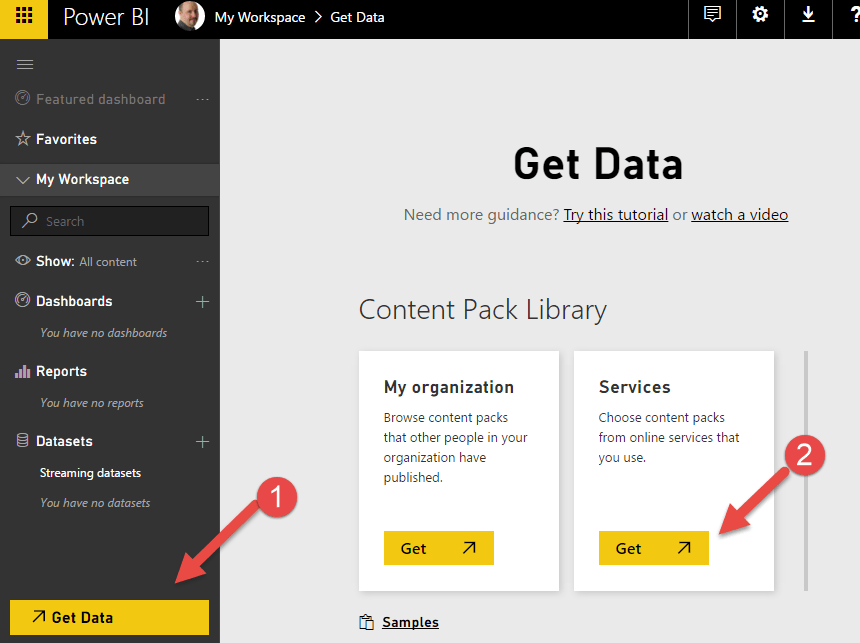
    3. Click Get Data in the lower left corner
    4. Click Services – Getimage
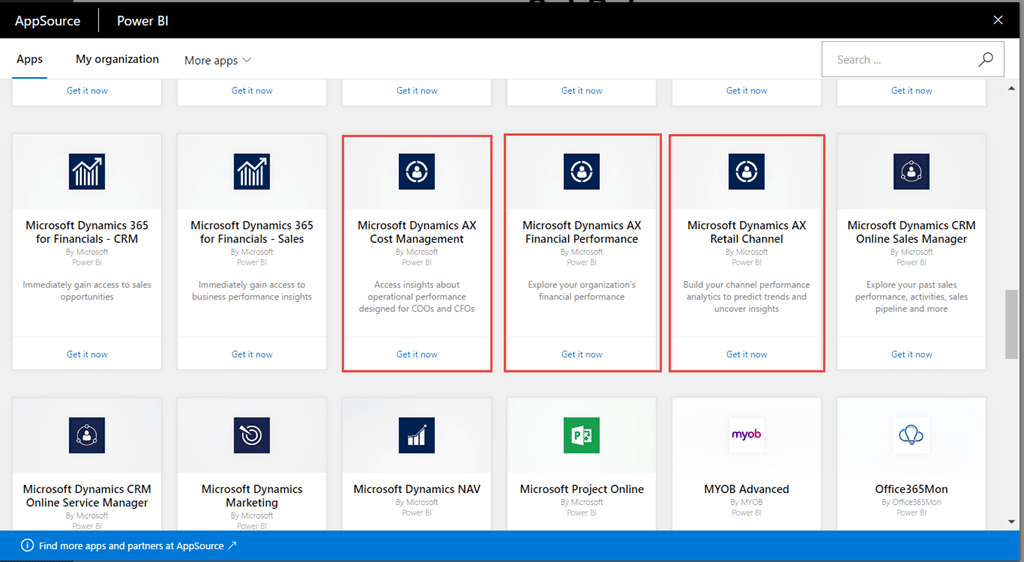
    5. Click Get it now on each of  the three (for now) AX Apps
      image
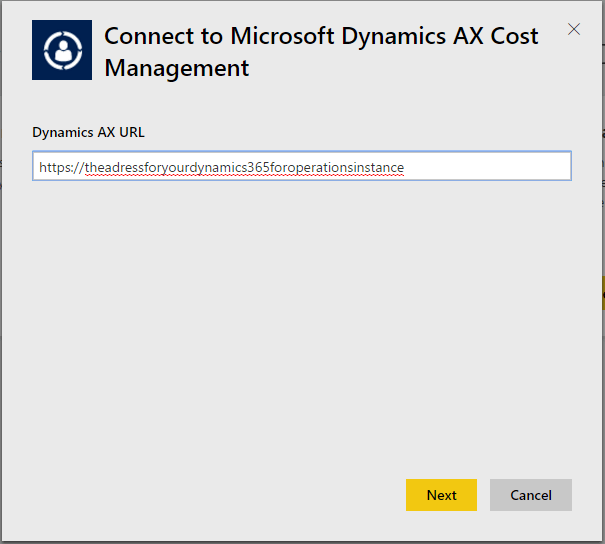
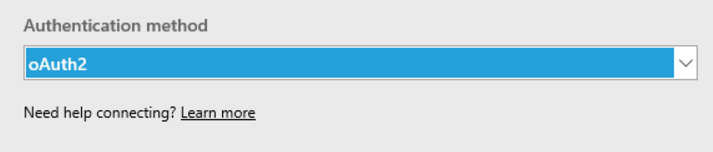
    6. On each of the Apps enter the URL for your AX instance (https://theadressforyourdynamics365foroperationsinstance ) and flick next. If you get prompted for authetication select OAuth2image   image

    Configure your workspace

    1. Log into Dynamics 365 for operations
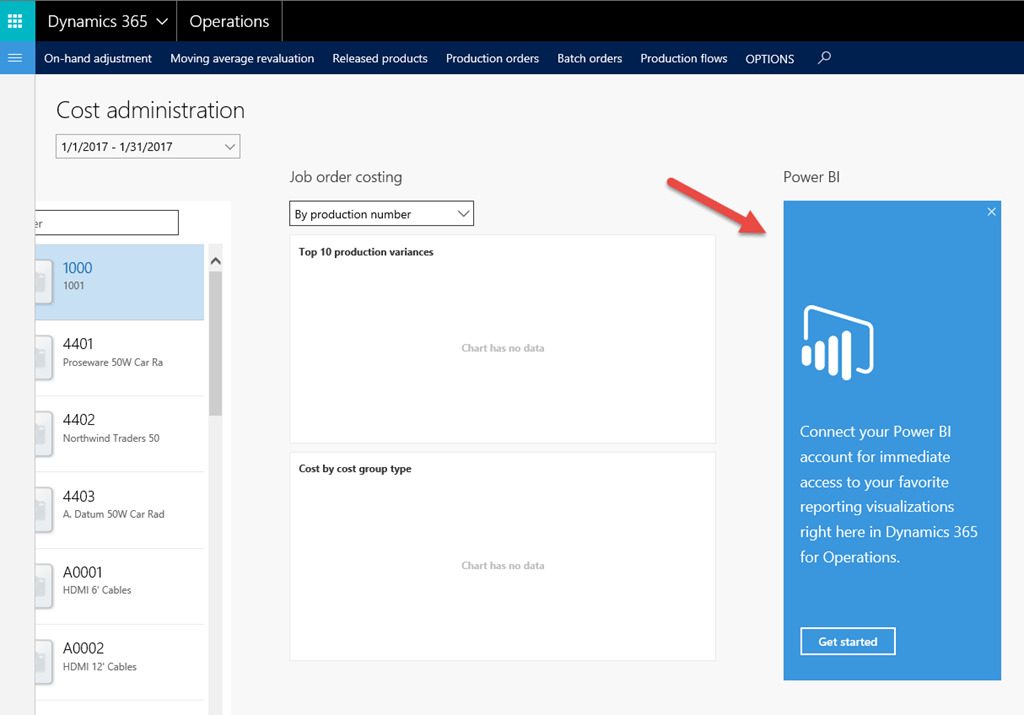
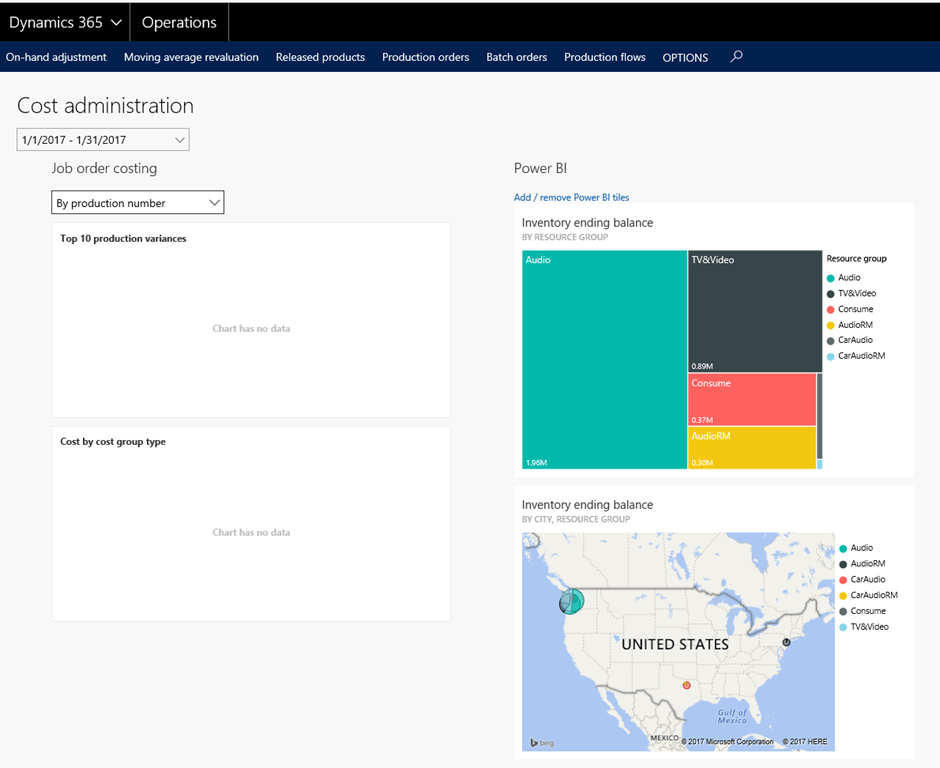
    2. Go to the Workspace called Cost Administration
    3. Scroll to the right and click on the Power BI paneimage
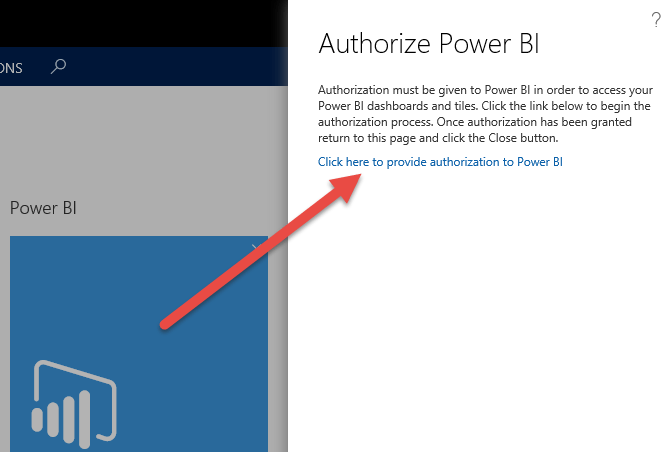
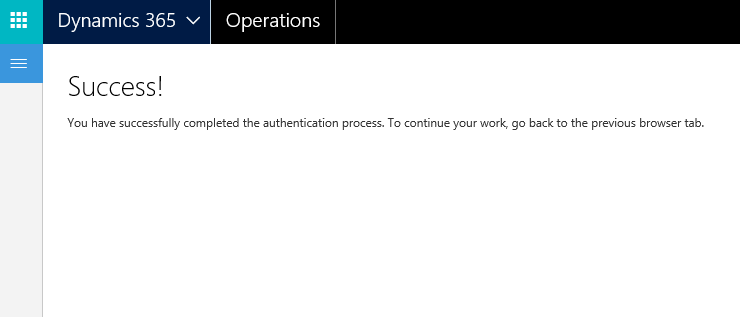
    4. If this is your first time you need to authorize Power BI. Click the link, log in using your credentials and approve the permissions.image   image
    5. Return to the Dynamics Tab and click closeimage
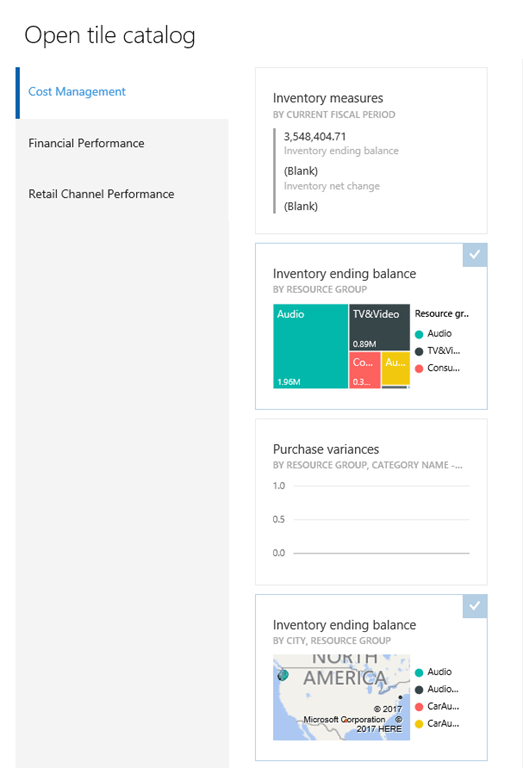
    6. Select the Power BI tiles you want from the Tile catalog and click OK to add them to your workspaceimage    image

    This should be it… Business Intelligence glory!

    Links:
    https://docs.microsoft.com/en-us/dynamics365/unified-operations/dev-itpro/analytics/configure-power-bi-integration


  • DynamicsPodden – Avsnitt 2 – Gränssnitt

    Hej…

    I detta andra riktiga avsnitt av Dynamicspodden pratar vi om en av de största förändringarna i Dynamics 365 for Operations, nämligen gränssnittet. Vilka är fördelarna med ett webgränssnitt? Hur kan jag skapa tredjepartsappar mot dataentiteterna i AX och hur kan jag integrera externt data och Power BI rapporter direkt i gränssnittet.

    I studion: Emelie Jurstrand, Jonathan Bucht och Johan Persson

    Länkar:

    https://flow.microsoft.com/en-us/
    https://powerapps.microsoft.com/en-us/

    /Emelie, Jonathan och Johan

  • Updating a secondary AOS instance

    Today one of my colleuges had an issue with applying a hotfix in a customers environment. The environment had three AOS instances installed on the same server which had the correct version and they installed a fourth one which they missed to patch.

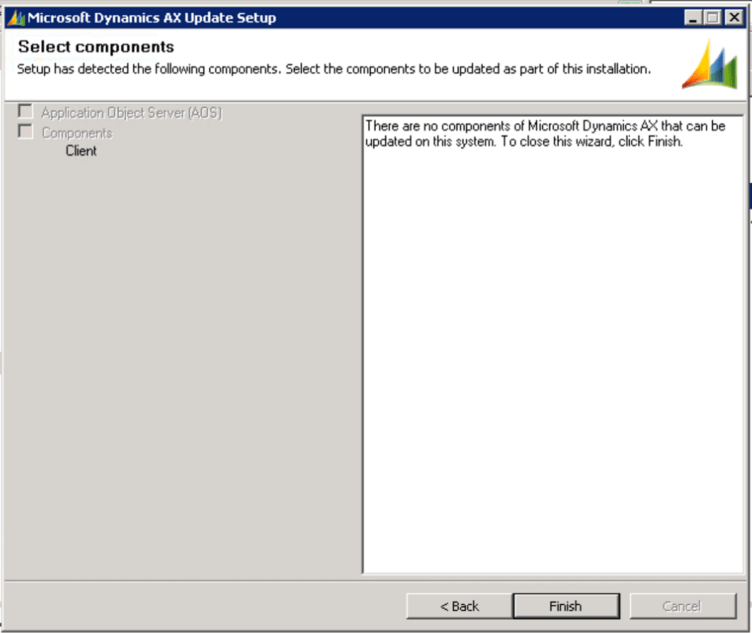
    When we ran the axupdate install file we got this screen:

    image

    It said that there is nothing to patch… which there was… weird. So looking around the internet I found out that there is a command line parameters for axupdate called AOSINSTANCENAME… great… that should work…

    image

    Doh… turns out you cannot use comandline parameters unless you run a completely silent install…

    axupdate.exe AcceptLicenseTerms=1 AosInstanceName=04-AX183ByggUserTest AosStart=0 HideUI=1 InstallAos=1 LogDir=”c:\Temp”

    If you miss the HideUI=1 it will also ignore all of the other parameters Sad smile

    Well… all well that ends well

    Merry Xmas

    /Johan

  • Problems with Event viewer messages for AX

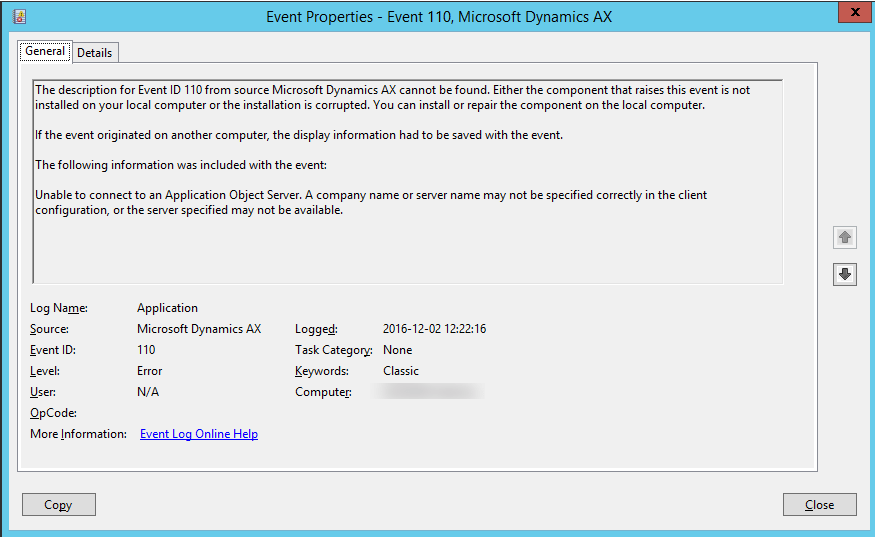
    Quite ofter when I look in the eventviewer I can see issues that the Event ID text does tell me anything other than it is not possible to show the message. I got this today at a customers that is running AX so I descided to find the solution. The error message I got looked like this:

    SNAGHTMLa609812

    I searched around a bit and found a solutin online… turns out we need to create a registry key pointing to the correct file containing the event text. This could be a exe or a dll file.

    Below is a link to the information and the entire solution. The short description is this:

    1. Open regedit and go to HKEY_LOCAL_MACHINE\SYSTEM\CurrentControlSet\Services\EventLog\Application
    2. Create a new key called Microsoft Dynamics AX
    3. Create a String Value called EventMessageFile and add the following text:
      C:\Program Files (x86)\Microsoft Dynamics AX\60\\Client\Bin\Ax32.exe

    Best Regards

    /Johan

    Link:

    https://stoneridgesoftware.com/ax-event-log-message-the-description-for-event-id-from-source-microsoft-dynamics-ax-cannot-be-found/

  • Issues with LCS System Diagnostics

    I am working with a customer today and we are setting up LCS System Diagnostics on their AX 2012 R3 environment. They have quite a locked down environment which presents some challenges.

    First of all we need to open outgoing traffic to LCS and to Azure from the server where we installed LCS according to Microsoft. The adresses are:

    Azure: 168.62.1.142:443
    LCS: 137.135.11.111:443

    If you miss the Azure port no data vill be uploades since the upload is a Zipped file to an Azure Storage account

    Johan