• Missing Warehouse app step instructions in D365FO

    This week we have been having an issue with the warehouse at a customer. We are in the process of rolling out a new Legal entity and when moving the Legal entity to a new environment using DMF we noticed that the Warehouse app step instructions stopped working and was replaces with very cryptic labels

    This issue was not present in the environment we used to set up the legal entity, but rather it occurred when we moved it.

    Turns your enabling the feature (Warehouse app step instructions) sets the default steps in all existing Legal Entities but if we create a new one they are not.

    To create these in a new legal entity we need to click “Create Default Steps” in the Mobile Device Steps module.

    There is also no data entity for moving mobile device steps from one environment to another which might be a good idea for future improvement.

    That is all for today

  • UPDATED: Configuring access for mobile warehousing app in Dynamics 365 for Operations

    Back in 2018 I wrote an article on how to configure a D365FO instance to enable the Warehousing App. A lot of time has passed and tonight I will set up the all new and improved Warehouse App so I thought I would also take the time to update the original article

    1. Go to the azure portal. In Azure Active Directory – App Registrations create a web application for the warehouse portal
      Name: WhatEverYouWant
      Who can use thisapplication or access this API: Accounts in this organizational directory only
      Application Type: Web app/API
      Sign-on URL: https://[theURLforyourdynamicsinstance]/oauth
    2. Open the application to edit it
    3. Verify Application ID. Save this for later…
    4. Go to API Permissions and click Add a permission
    5. Select the API called Microsoft Dynamics ERP (Microsoft.ERP)
    6. Choose Delegated Permissions
    7. Under Permission to other applications click add application and add Microsoft Dynamics ERP
    8. Add the following permissions
      – Access Dynamics AX online as organization users
      – Access Dynamics AX data
      – Access Dynamics AX Custom Service
      Click Add Permissions
    9. Click Grant admin consent for [Your Organization] and confirm your choice
    10. Go to Certificates and Secrets and click New client secret. Select an expiration and give the key a description like D365FO Warehousing App
    11. Log into Dynamics 365 for Operations and go to System Administration – Users and create a new user (in my case called WMAPP. The email address can be anything since it will never be used. The user needs this role:
      – Warehouse mobile device user
    12. Now we need to associate the user to the AD Application which is done on System Administration – Setup – Azure Active Directory applications. Here we paste the App ID/ClientID from before and select the user we created. Click Save and you are done.
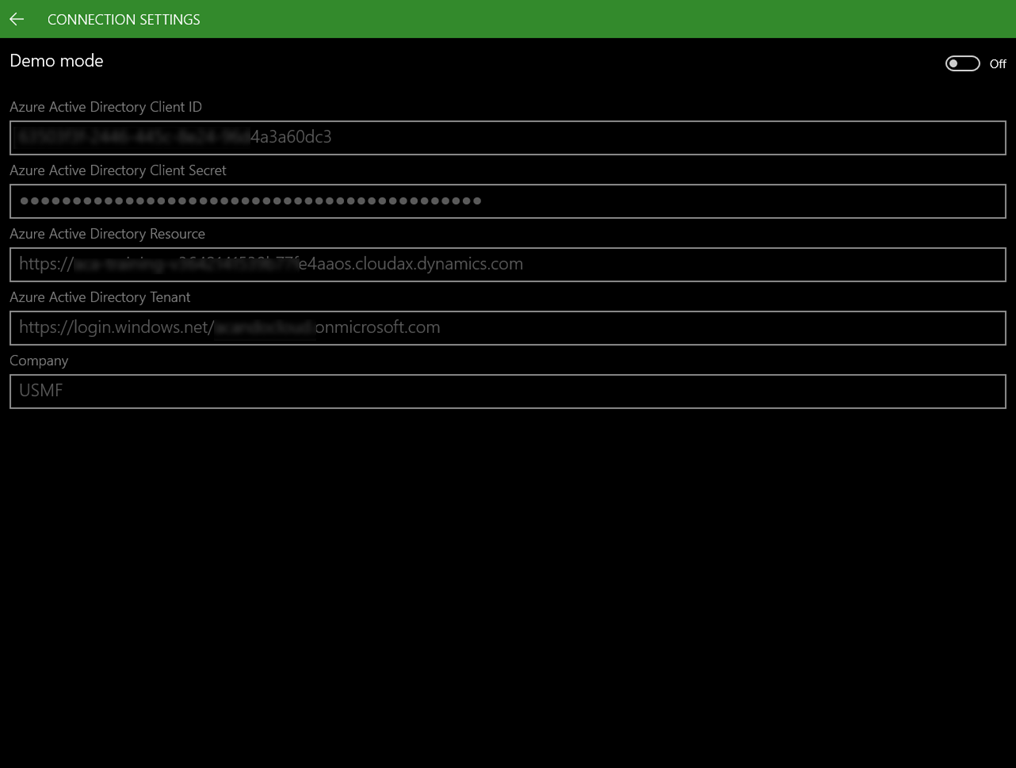
    13. Install the App from app store and enter these settings:
      1. Azure Active Directory ID: AppID/ClientID from step 3
      2. Azure Active Directory Client Secret: The key from step 10
      3. Azure Active Directory Resource: Your Dynamics 365 URL
      4. Azure Active Directory Tennant: https://login.windows.net/yourAzureADtennant.onmicrosoft.com
      5. Company: Dynamics 365 for Operations Legal Entity
    14. To configure the mobile att you create a JSON file with the connection setting
    {
        "ConnectionList": [
            {
                "ActiveDirectoryClientAppId":"11111111-2222-3333-4444-111111111111",
                "ConnectionName": "YourConnection",
                "ActiveDirectoryResource": "https://{[yourdynamicsenvironent].cloudax.dynamics.com/",
                "ActiveDirectoryTenant": "https://login.windows.net/[yourtenantid].onmicrosoft.com",
                "Company": "USMF",
                "IsEditable": true,
                "IsDefaultConnection": true,
                "ConnectionType": "clientsecret"
            }
        ]
    }
    1. The JSON file can either be uploaded to the device or converted to a QR code using a service like this.
    2. Unfortunately/Thankfully the client secret cannot be put in the file/QR code and it have to be entered manually by editing the connection on the mobile device.
    3. To login in to the app you will need to have a username and password. Go to Warehouse Management – Setup – Worker – Users and select a user (in my case 24). Reset the password for worker 24
    4. Login to the app using User ID 24 and the new password you just set

    Note:
    To use the new Warehousing App you will need to enable a feature i D365FO called User settings, icons, and step titles for the new warehouse app which is available from 10.0.17

    Links
    Install and connect the warehouse app – Supply Chain Management | Dynamics 365 | Microsoft Docs

  • Configuring access for mobile warehousing app in Dynamics 365 for Operations

    Today I am setting up the mobile warehouse app in Dynamics 365 for Operations… there is a very nice Wiki article here with the walkthrough but I am doing a slightly condensed version.

    Edit 180108: Step has been edited to work in the new portal

    1. Go to the azure portal. In Azure Active Directory – App Registrations create a web application for the warehouse portal

      Name: WhatEverYouWant
      Application Type: Web app/API
      Sign-on URL: https://[theURLforyourdynamicsinstance]/oauth

    2. Open the application to edit it
    3. Verify Application ID. If you create the Application in the new new portal it will auto generate an AppID which is random. If you use the old portal to create the application you will have to add the App ID URI. Make sure that this URI is NOT your Dynamics 365 for operations URL because this will break for instance Excel Add-in and Management Reporter. For more information look here
    4. Go to Required Permissions and click Add
    5. Select the API called Microsoft Dynamics ERP (Microsoft.ERP)
    6. Under Permissions to other applications click add application and add Microsoft Dynamics ERP
    7. Add the following permissions

      Access Dynamics AX online as organization users
      Access Dynamics AX data
      Access Dynamics AX Custom Service

    8. Go to API Access – Keys, enter the name for your new key and set a duration. When you click save you will get the key. Please remember to copy and save it some where because it will not be visible later.
    9. Now you need to save the ClientID (Old Portal)/Application ID (New Portal) for later.
    10. Log into Dynamics 365 for Operations and go to System Administration – Users and create a new user (in my case called WMAPP. The email address can be anything since it will never be used. The user needs these roles

      Warehouse mobile device user

    11. Now we need to associate the user to the AD Application which is done on System Administration – Setup – Azure Active Directory applications. Here we paste the App ID/ClientID from before and select the user we created. Click Save and you are done.
    12. Install the App from app store and enter these settings:

      SNAGHTML12dda1b

      1. Azure Active Directory ID: AppID/CleintID from step 9
      2. Azure Active Directory Client Secret: The key from step 8
      3. Azure Active Directory Resource: Your Dynamics 365 URL
      4. Azure Active Directory Tennant: https://login.windows.net/yourADtennant
      5. Company: Dynamics 365 for Operations Legal Entity

    Links:
    https://ax.help.dynamics.com/en/wiki/install-and-configure-dynamics-365-for-operations-warehousing/