Dualwrite: Missing order lines

When setting up Dualwrite for orders and quotes and doing initial sync, sometimes all order/quote lines do not sync over correctly. Especially if you have historical orders that are already delivered.
If an order is delivered i FO and the head of the quote/order is synced to CE, the lines will not sync. The result is that whenever you try to do something to that order (for instance invoice it), there is logic in CE, that sees that is Delivered and thus sets it to read-only. Depending on if this happens during initial sync or during Live sync, there are different methods to fix this.
Initial Sync
While you are initial syncing quotes/orders you can use a workaround in order to correctly sync lines to an invoices/delivered order/quote.
The trick is to manipulate the sync mapping for the order/quote header and set all headers, temporarily, to open. NOTE: this is only temporary in order to get the lines to sync correctly.
1. Open the DualWrite workspace and go the mapping for Dynamics 365 Sales order headers (salesorders).
2. If it is started, stop the mapping.
3. Find the SALESORDERPROCESSINGSTATUS line and change delivered and invoiced to 192350000 (this will set them to active in CRM).
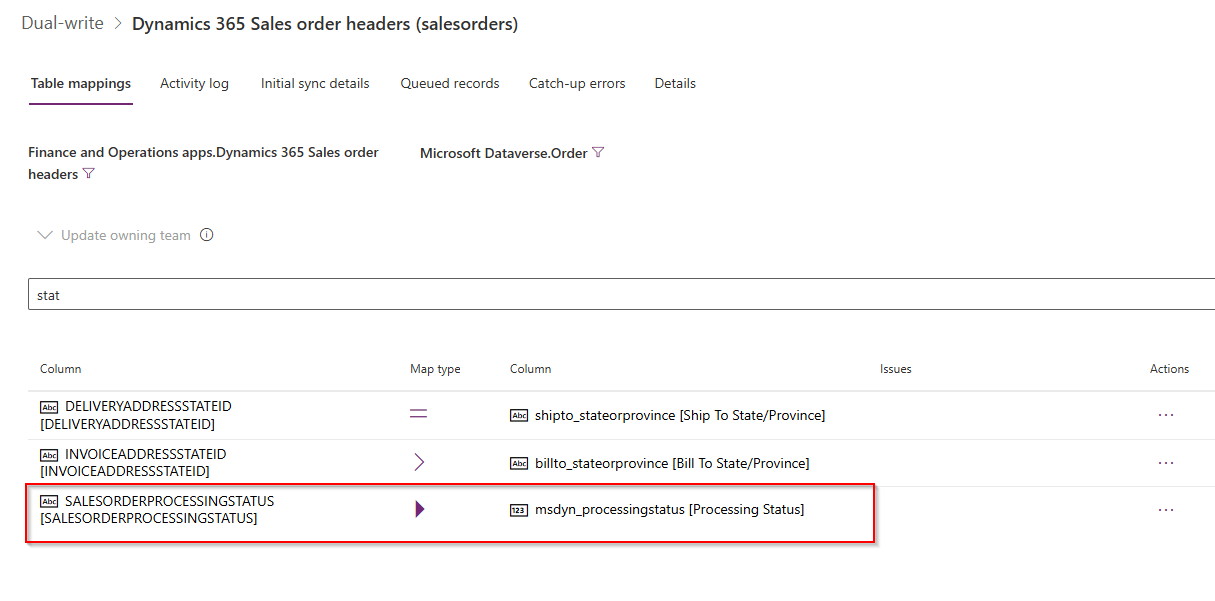
4. Click Save as to save the mapping. Give it a good description so you don´t use it by mistake.
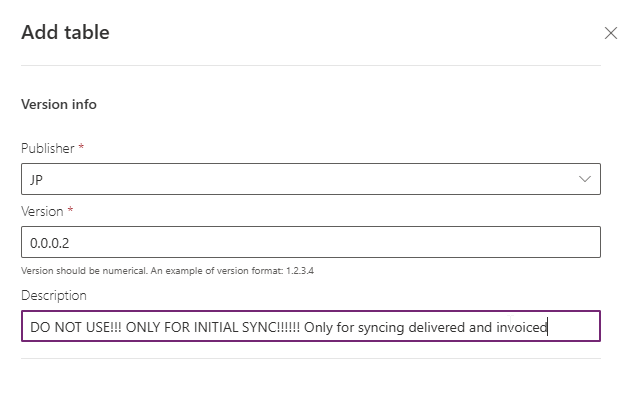
5. Perform the initial sync for Dynamics 365 Sales order headers (salesorders).
6. Sync Dynamics 365 Sales order lines (salesorderdetails)
7. Set the mapping for Dynamics 365 Sales order headers (salesorders) back to the correct mapping and perform a new initial sync.
8. Start the mappings for Dynamics 365 Sales order headers (salesorders) and Dynamics 365 Sales order lines (salesorderdetails) without syncing it again.
Live Sync
When you are already live with the solution and you find an order that is missing lines, the issue is that you can not run initial sync, because that would destroy the data.
To figure out if this is your issue, open the order in FnO and CE and compare them. If the order is missing lines or the entire order is missing from CE, go through these steps:
1. Open the order in FnO
2. Select the first line in the order and click Update line - Deliver remainder
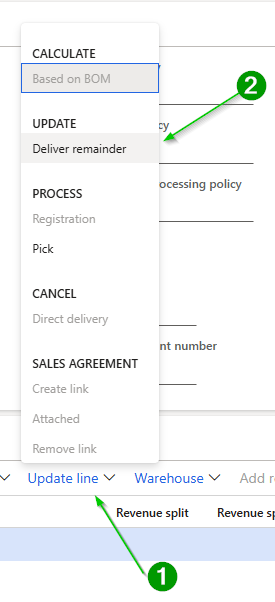
3. Set the Sales Quantity and Inventory Quantity to 1 and click OK
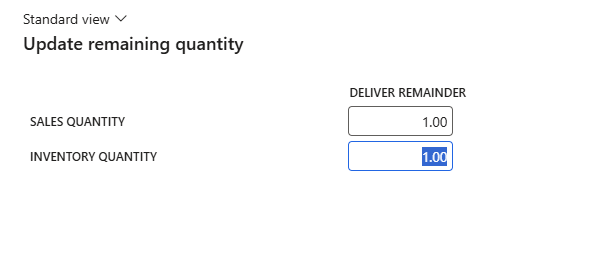
4. The status of the order is not set to Open Order and the order should exist in CE with the line you made the change for.
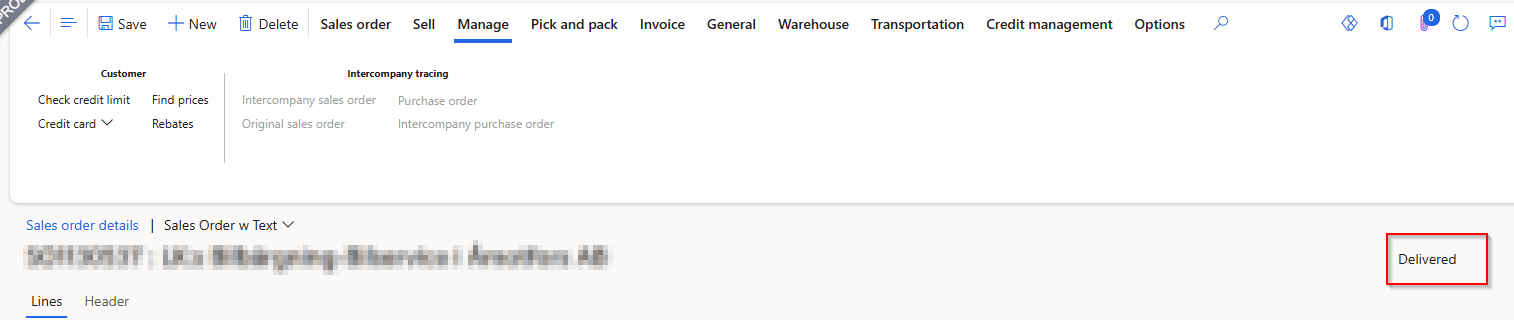
5. If there are more lines on the order in FnO which have not synced to CE, make a small edit to the line (add a . to the Text field). This will force it to sync.
6. When the order is correct in CE, go back to the first line in FnO and click Update Line - Deliver remainder. Click Cancel quantity.
The order is now back to the status Delivered.