App Insights for FnO in 15 Minutes

When LCS is being deprecated eventually, we will loose our main source of out of the box monitoring and telemetry for Dynamics 365 for Finance and Supply Chain. Fortunately Microsoft has a plan and D365Fo is now able to connect and sent telemetry to Azure Application insights.
Application Insight is Microsoft’s service for Telemetry and Insights. It receives data, stores it in a database and you run queries against it and build dashboards to see health of your environment. Most Azure Services can also sent telemetry to Application Insights, this means that you will have a "single pane of glass" where you can see D365FO and Integration Services in the same timeline.
When I talk to my customers, most of them think that is a hard thing to set up… in this post I will show the steps and do it in 15 minutes:
-
Create a new App Insights Instance
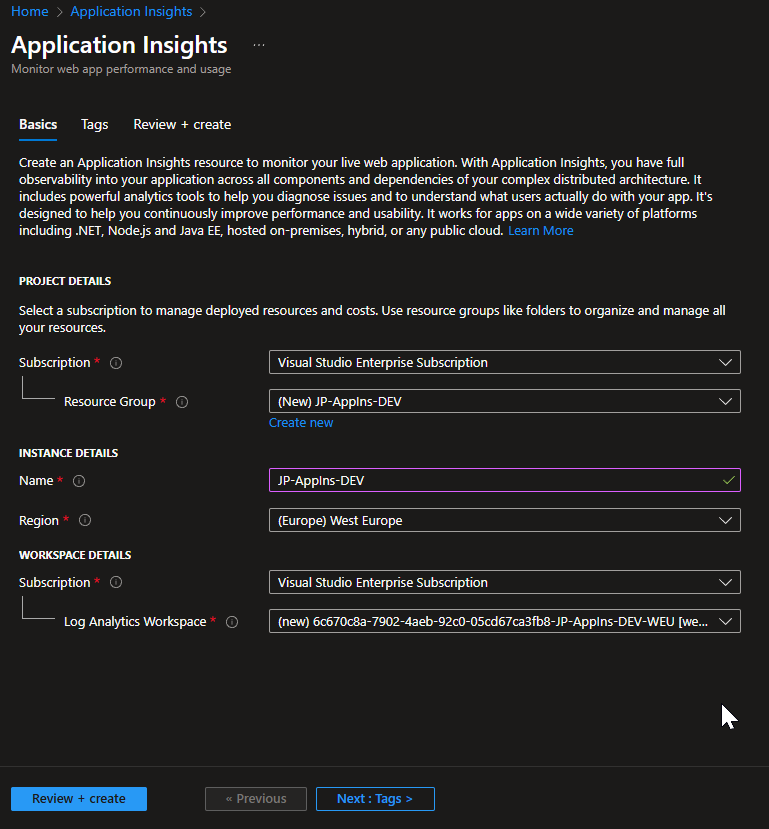 Wait for it to finish
-
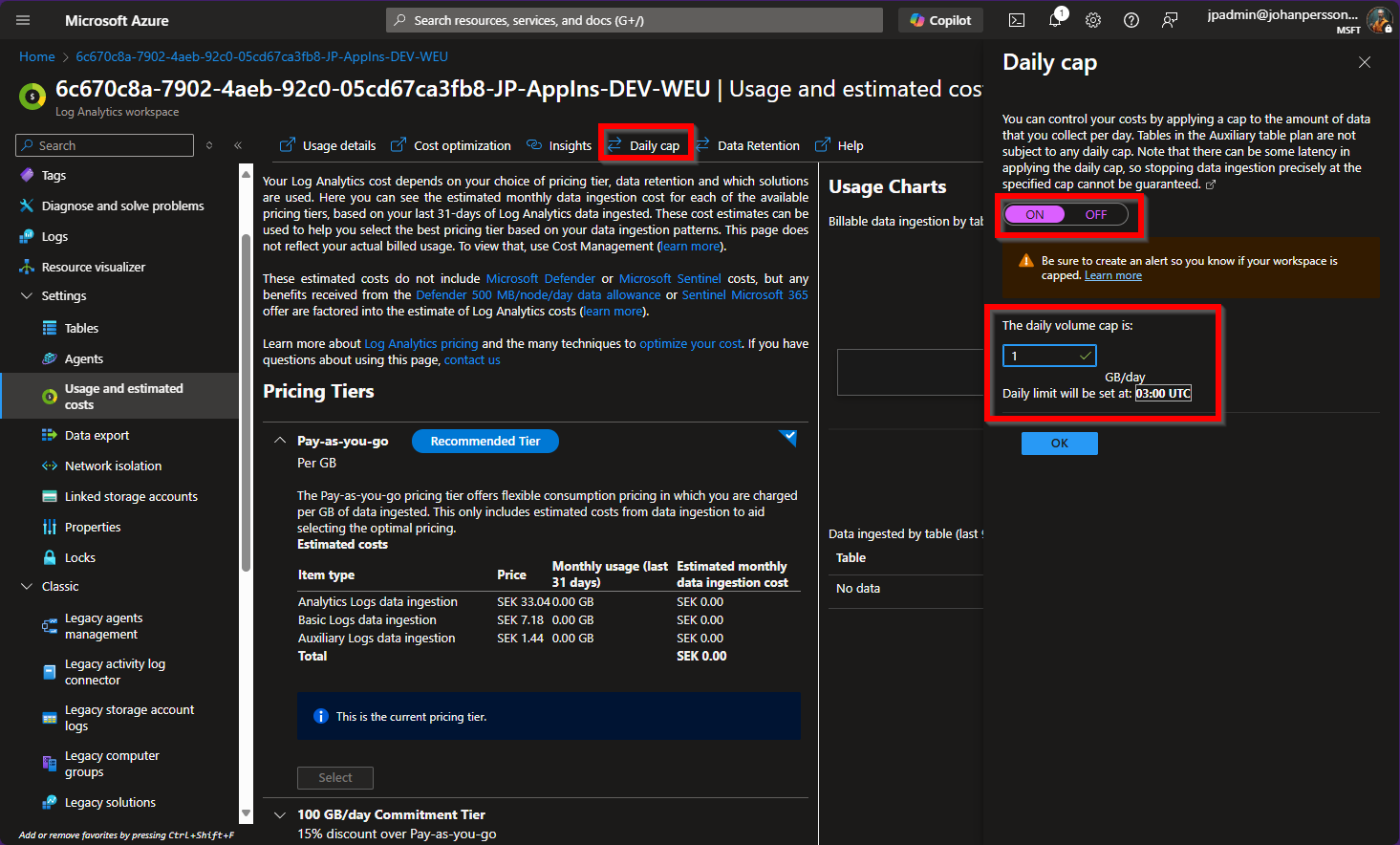
Set retention of data. If you are doing the setup for test, dev or lab it is a great idea to limit the amount of data that is saved (since that is what drives cost)
- Go to the Analytics Workspace
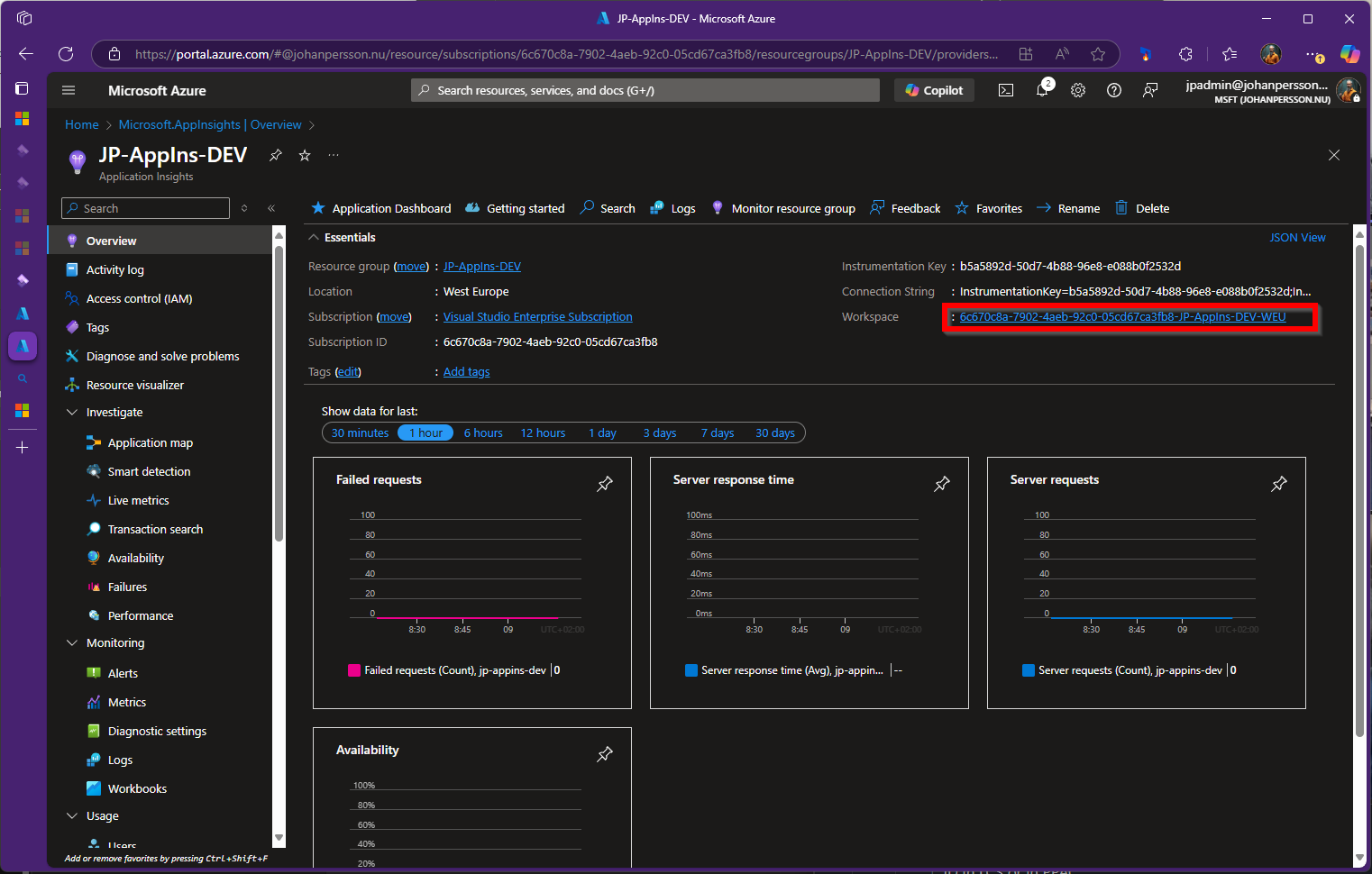
- Click Usage and Estimated Cost
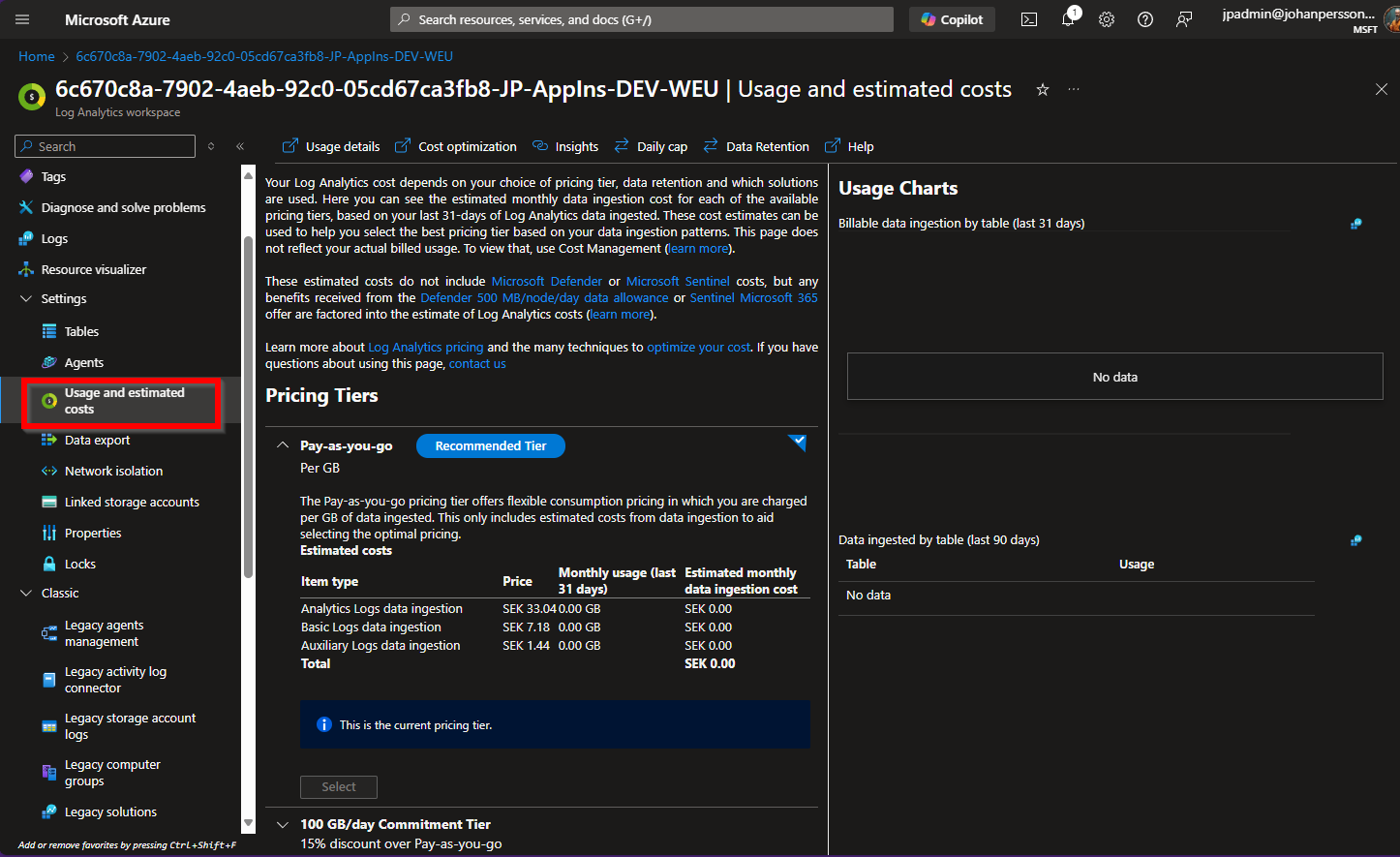
- Set a Daily Cap to limit the amount of data collected per day
- Set the time data will be retained
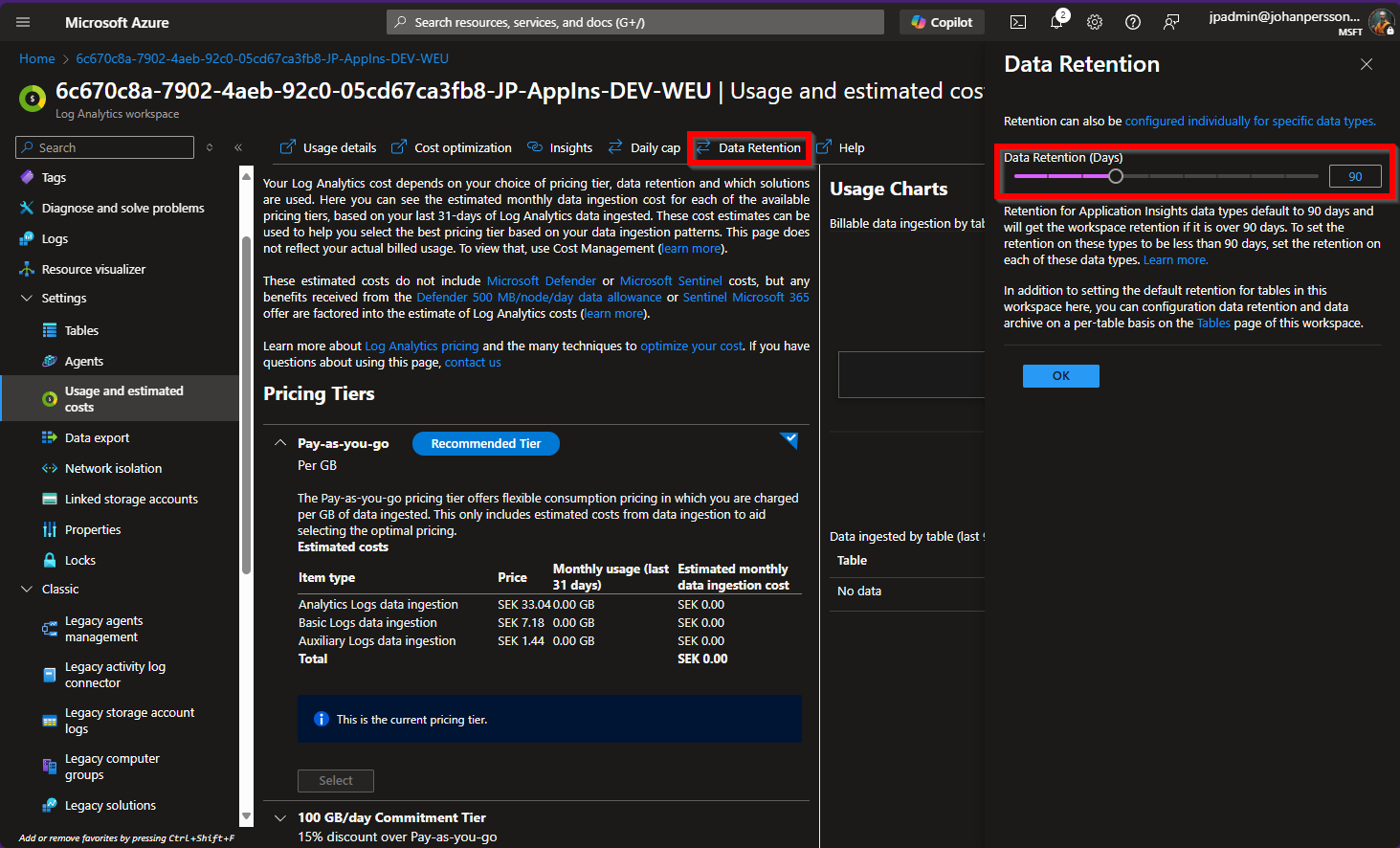
- Go to the Analytics Workspace
-
In FnO, activate the Feature "Monitoring and Telemetry"
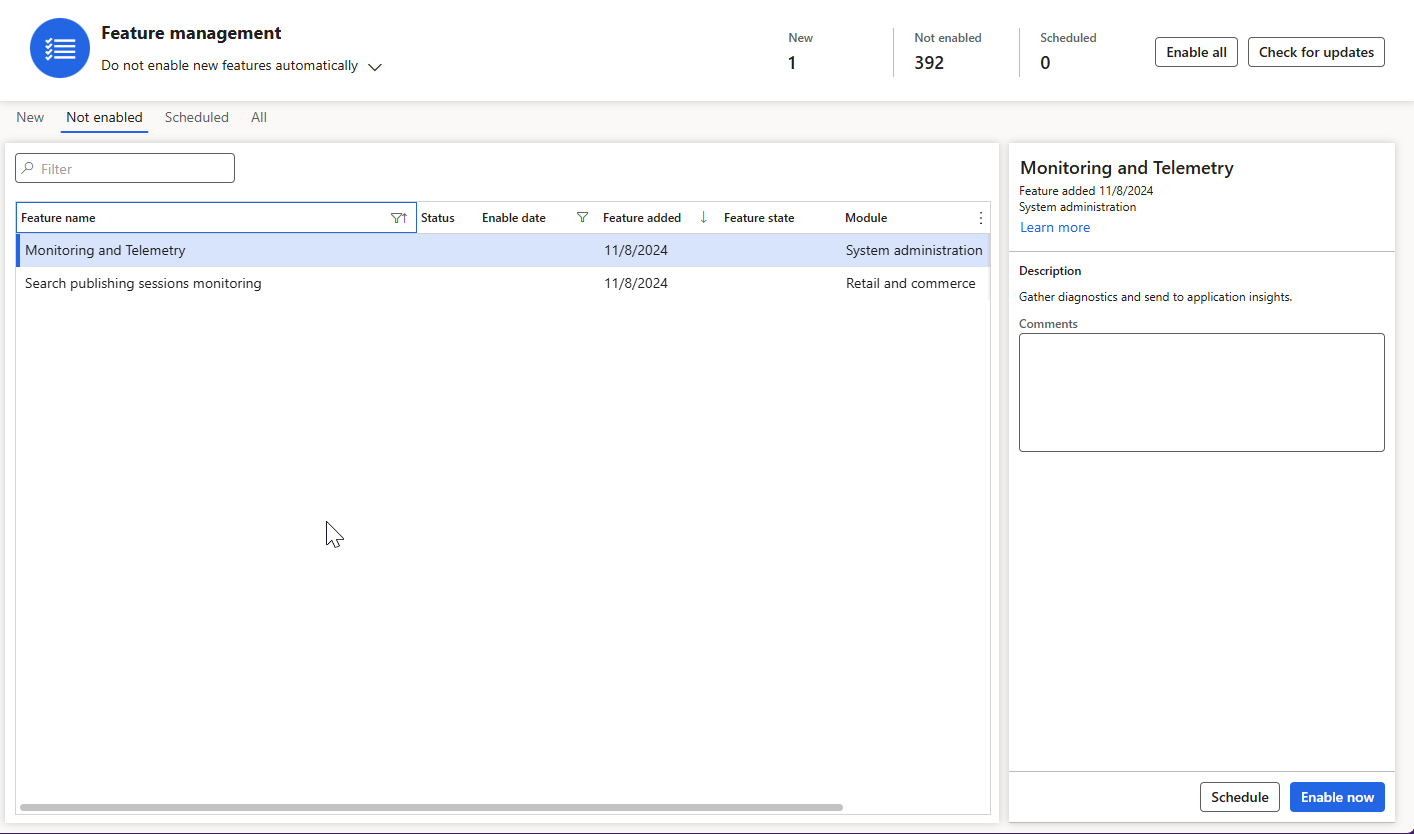
- In Fno Go to Monitoring and Telemetry in System Administration
-
Activate all the checkboxes
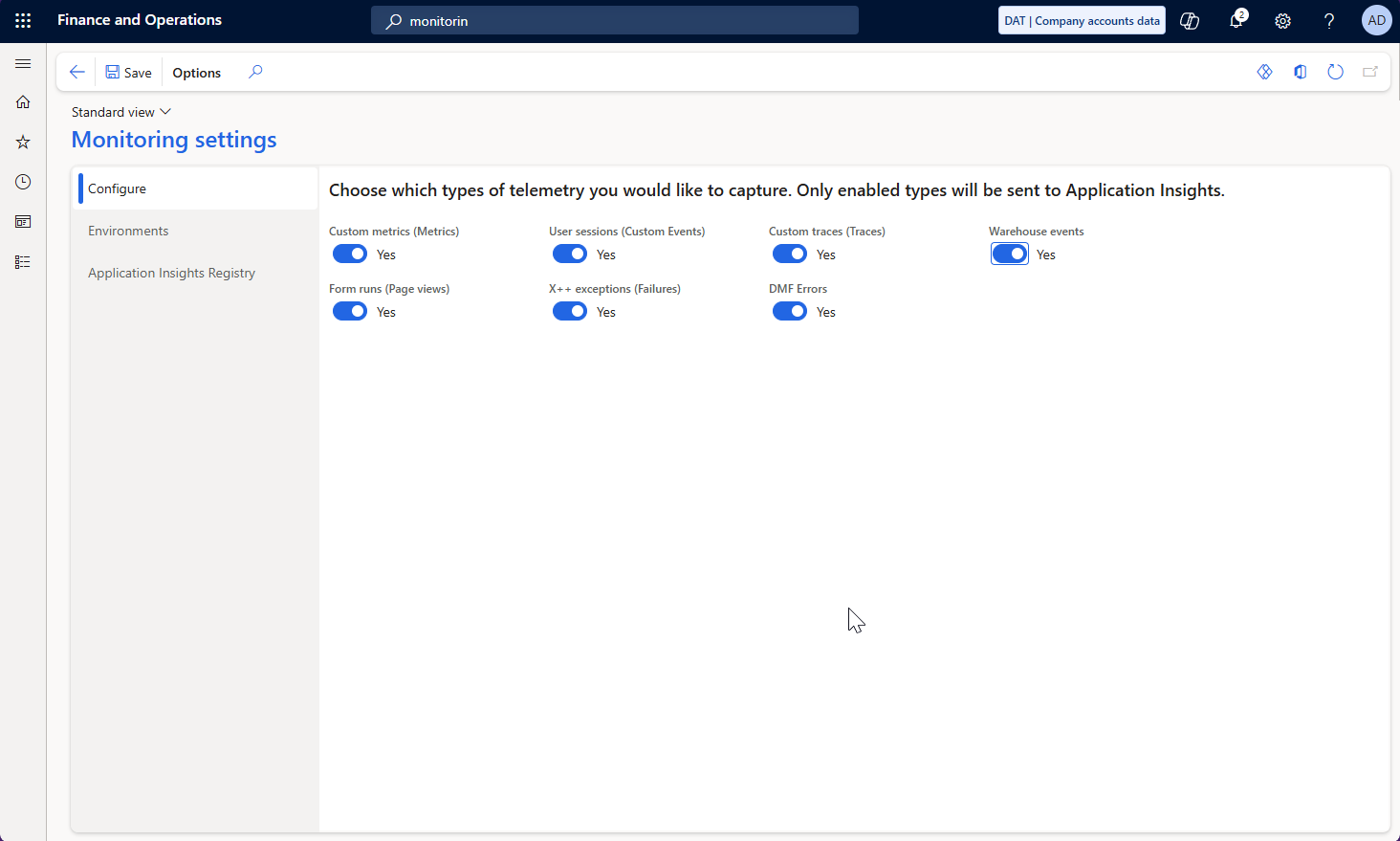
-
In Environments, create your environemtn
- ID in LCS or in PPAC
- Set Mode
- Save
-
In Application Insight Registry
- Enter instrumentation Key from Azure
- Enter the Connection String
-
Verify functionality
- Click around in FnO
- In the Log Analytics Workspace, click Logs and dismiss the pop-up
- Click Page Views and choose run
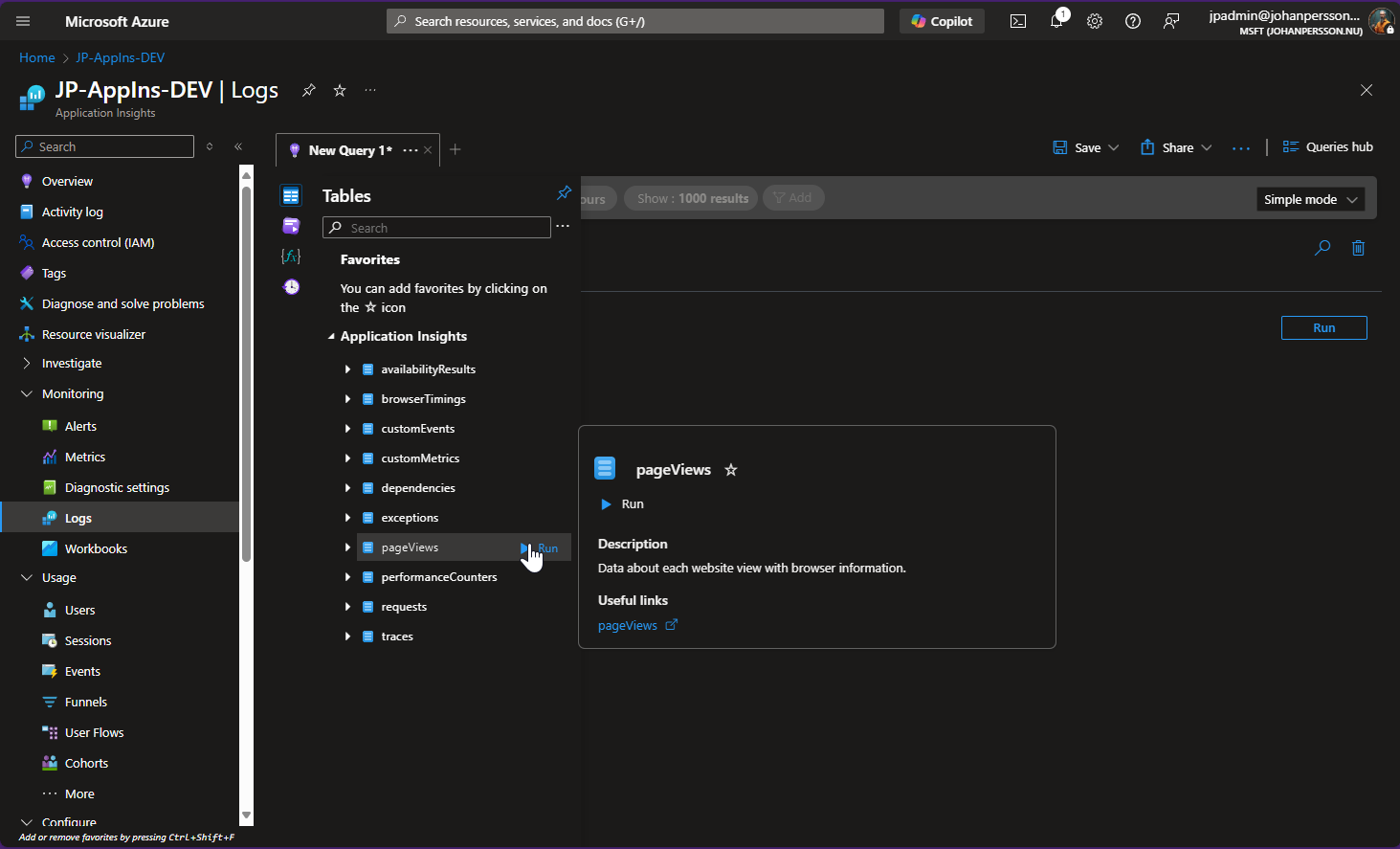
- Now you have data :-)
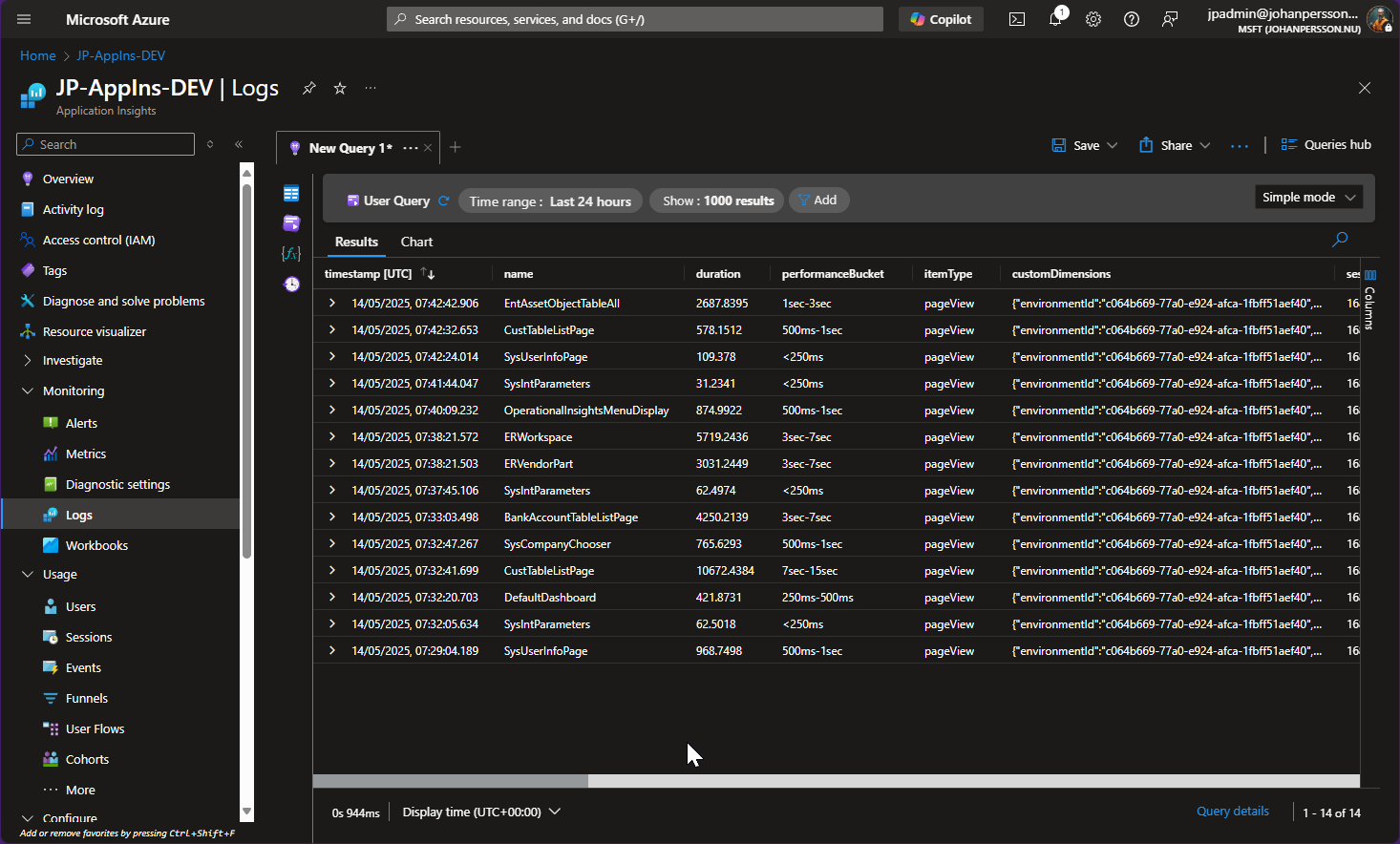 This was a really quick setup (it actually took 15 minutes, including the initial draft of the blog post) of App Insights and as you might imagine now we are at the point where the real work starts. Making sense of your data is the real job.
Microsoft Fasttrack has released a bunch of ready-made reports and dashboards that you can use to get started. These are made for Azure Data Analytics which I will set up in a later blogpost. There are also a whole bunch of new feature coming that we will also look into in later posts.
Good Luck getting started with Application Insights