
Basic SKU Public IP addresses will be retired on 30 September 2025

Microsoft has announced that all Basic SKU Public IP addresses in Azure will be retired on 30 September 2025. If you're currently using Basic SKU IPs, it's time to start planning your upgrade to the Standard SKU to avoid service disruptions. This change affects virtual machines, load balancers, and other resources relying on Basic IPs—so early action is key.
Basic vs Standard Public IPs (Source: Microsoft Learn)
| Aspect | Standard SKU Public IP | Basic SKU Public IP |
|---|---|---|
| Allocation Method | Static | IPv4: Dynamic or Static<br>IPv6: Dynamic |
| Security Model | Secure by default (closed to inbound traffic unless explicitly allowed via NSG) | Open by default (NSG optional) |
| Availability Zones | Supported (non-zonal, zonal, or zone-redundant) | Not supported |
| Routing Preference | Supported | Not supported |
| Global Tier Support | Supported (via cross-region load balancers) | Not supported |
| Standard Load Balancer | Supported | Not supported |
| NAT Gateway Support | Supported | Not supported |
| Azure Firewall Support | Supported | Not supported |
Basic vs Standard Load Balancer (Source: Azure Docs)
| Feature | Standard Load Balancer | Basic Load Balancer |
|---|---|---|
| Scenario | High performance, ultra-low latency, zone-aware, cross-region | Small-scale apps, no zone support |
| Backend Pool Type | IP-based, NIC-based | NIC-based |
| Protocol Support | TCP, UDP | TCP, UDP |
| Health Probes | TCP, HTTP, HTTPS | TCP, HTTP |
| Availability Zones | Zone-redundant, zonal, non-zonal | Not available |
| Diagnostics | Azure Monitor multi-dimensional metrics | Not supported |
| HA Ports | Available | Not available |
| Secure by Default | Closed to inbound flows unless allowed via NSG | Open by default |
| Outbound Rules | Declarative outbound NAT configuration | Not available |
| TCP Reset on Idle | Available | Not available |
| Multiple Frontends | Inbound and outbound | Inbound only |
| Management Operations | Most < 30 seconds | 60–90+ seconds |
| SLA | 99.99% | Not available |
| Global VNet Peering Support | Supported | Not supported |
| NAT Gateway & Private Link | Supported | Not supported |
In order for your VMs to continue to function after September 30th 2025 you need to update this.
How Do I Know
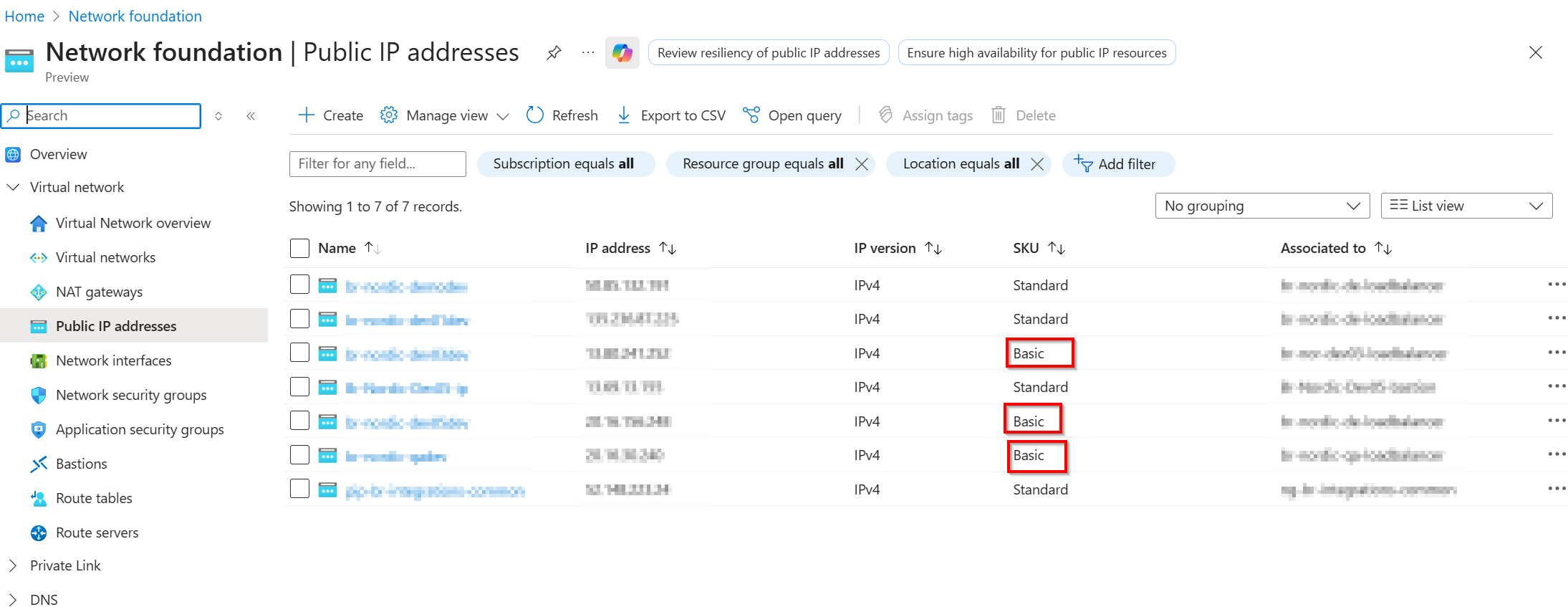
To see which VM has the old SKU of IP. Go to the Azure Portal and search to Public IP in the top search bar. You will get a list where all Public IPs are listed.
What do I need to do?
If the VM is OLD and only used for development, it is fairly easily replaced. Either you just reploy it from LCS (the new VM will have the correct IP SKU) or if you are up for it, you can deploy one of MS fancy new Universal Development Environments and then you will not have to worry about the infrastructure again.
If you need to keep the VM, there is an option to update the IP address, however, all of the VMs that I have needed to update were created from LCS and all of those have a loadbalancer that also needs to be updated.
Upgrading the LoadBalancer
Since all of the VMs deployed from LCS have a loadbalancer and if you have an older VM, with a legacy IP, chances are that you also have a Basic LoadBalancer. Since we cannot have a Standard IP connected to a Basic LoadBalancer, we need to update them both. Fortunately there is a nice script to do this.
Start a Cloud Shell (Powershell) in the Azure portal and import the module
Install-Module -Name AzureBasicLoadBalancerUpgrade -Scope CurrentUser -Repository PSGallery -Force
Run the script in validation mode to validate that all prerequsites are in please (Issues that I ran into are documented below):
Start-AzBasicLoadBalancerUpgrade -ResourceGroupName [ResourceGroupName] -BasicLoadBalancerName [LoadBalancerName] -validateScenarioOnly:$true
If that goes through without a hitch, run the same script but without the ValidationScenarioOnly switch
Start-AzBasicLoadBalancerUpgrade -ResourceGroupName [ResourceGroupName] -BasicLoadBalancerName [LoadBalancerName]
When you run the update script for the LoadBalancer, it will also update the Public IP to a Standard SKU
Missing Backend Pool
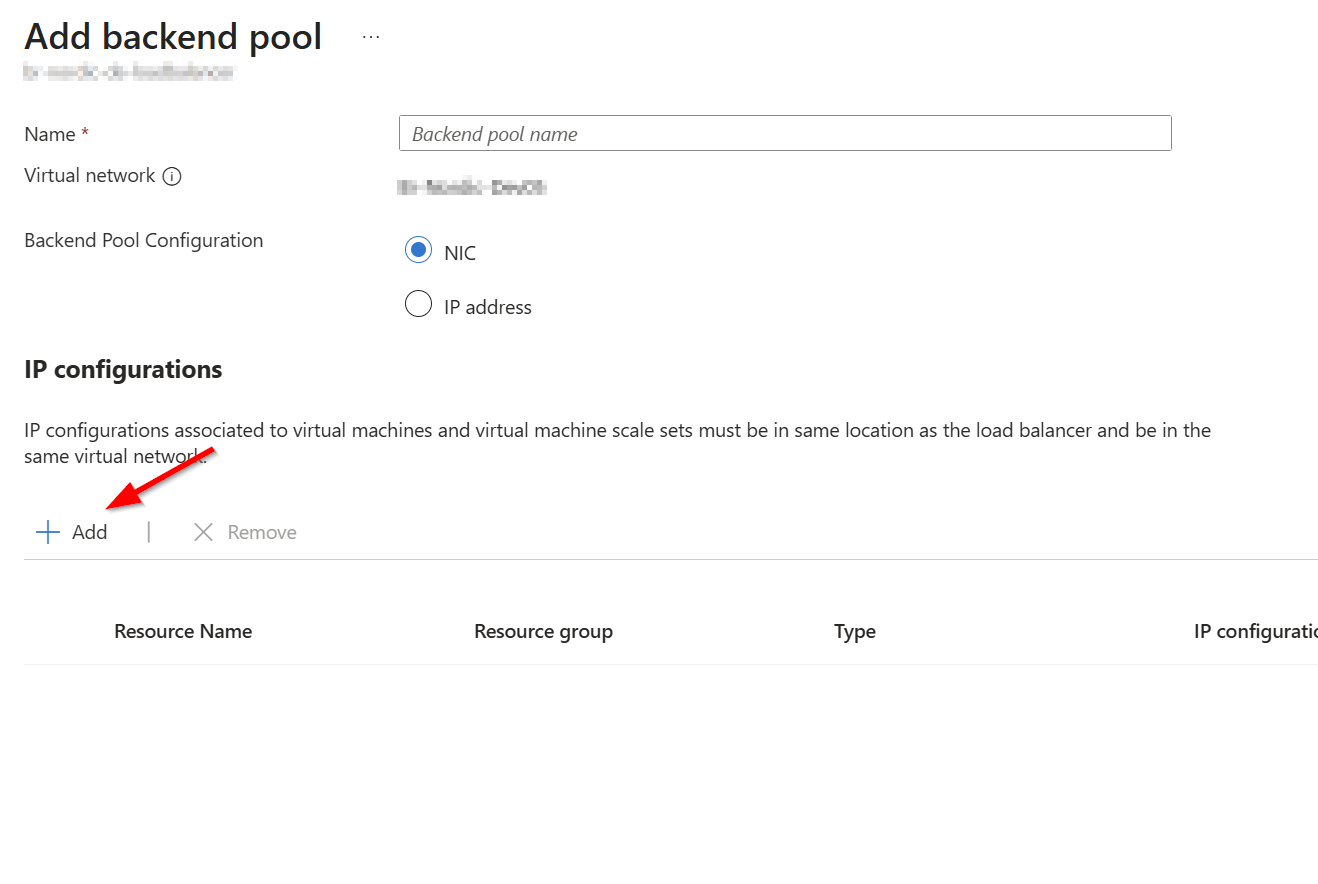
On some of the VMs I have updates, I experienced that the LoadBalancer configuration was missing a Backend Pool and that the VM was not in that non existing pool.
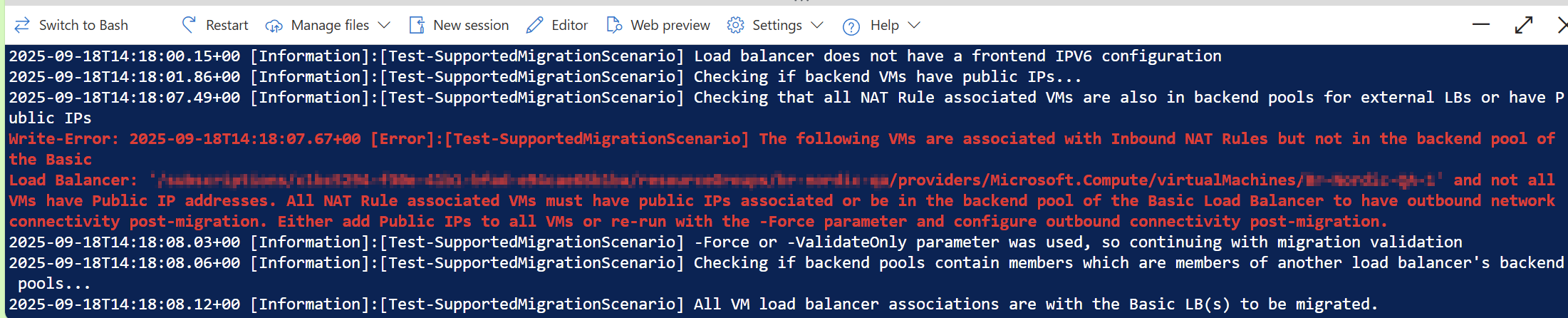
To add the pool and the VM, go to the LoadBalancer, open Settings - Backend Pools, click add. Give the pool a name (vm-backend-pool) and add the VM to it by clicking Add
Updating the IP
To update the IP you will need to temporarily disassociate it from the VM and the reconnect it after the update. These are the steps to do it:
- Associate the IP from th eresources it is connected to
Links
Upgrade a public IP address | Microsoft Learn
Upgrade from Basic to Standard with PowerShell - Azure Load Balancer | Microsoft Learn
Upgrade Basic Public IP Address to Standard SKU in Azure | Microsoft Learn